CashWard 1.0
User Manual
See where your money is headed — and get time to do something about it.
1Welcome to CashWard
CashWard helps you understand where your money is headed — and gives you time to do something about it.
Most money apps look backward: they sort what you already spent into categories. CashWard looks forward. You tell it about your accounts, your income, your bills, your debts and your insurance once, and it lays out your balance day by day, so a tight week shows up weeks before it arrives — while there is still time to move a payment, trim a bill or set some money aside.
1.1Three ideas behind the app
Look ahead, not back
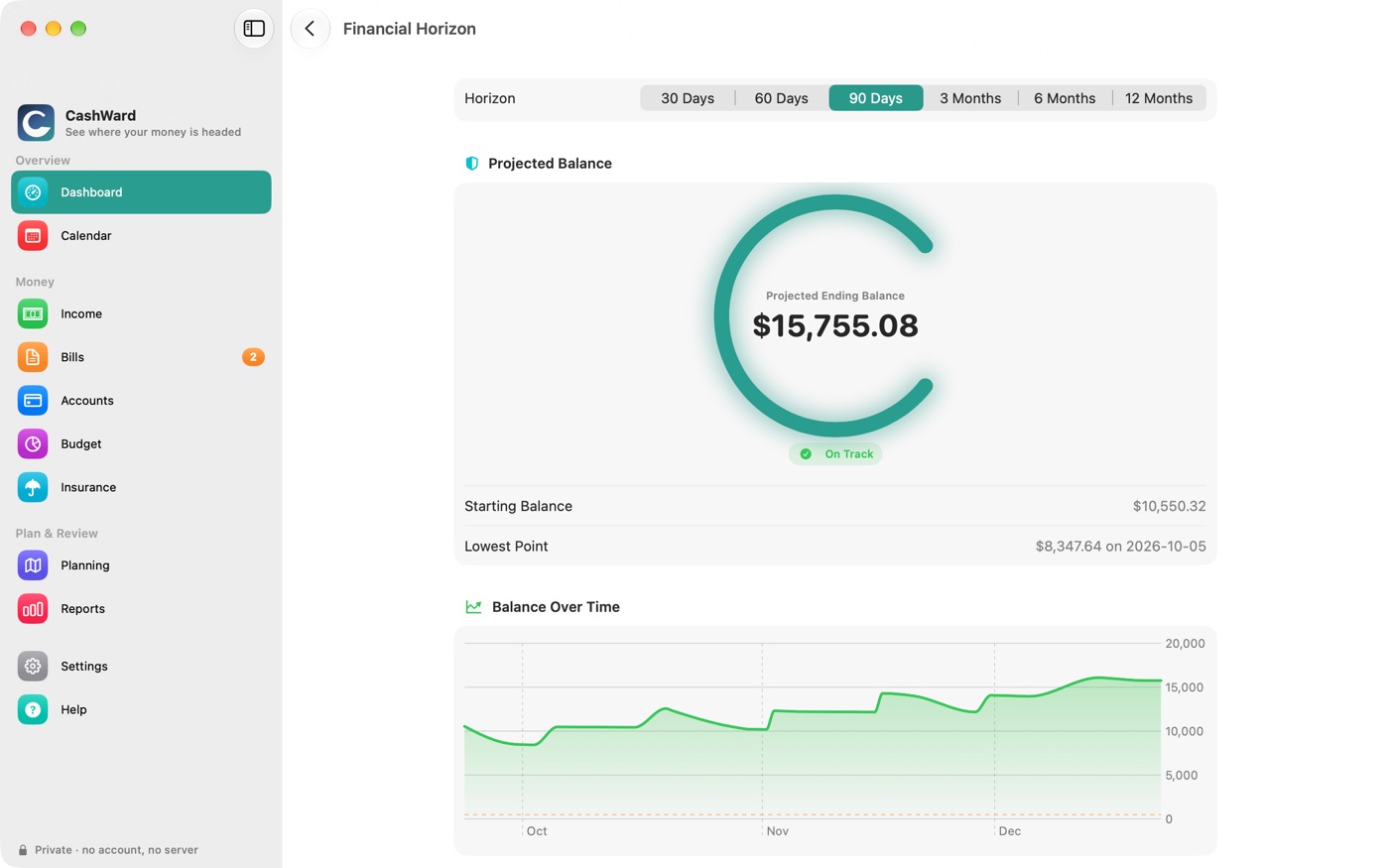
The heart of CashWard is the Chapter 5, The Financial Horizon: a projected balance, from today forward, with your salary paydays, bills, subscription renewals, insurance premiums and debt payments already in it. It tells you when your balance would dip below the safety line you set, and why.
Plan around real income
Salary, hourly work, date-bounded contracts and one-off payments all work, for everyone in your household. Payroll and tax estimates use the Canada Revenue Agency's published payroll formulas, for every province and territory except Quebec (see Section 7.3, Payroll estimates).
Keep it private
There is no account to create and no server. Your information stays on your own devices, CashWard never connects to your bank, and nothing you enter is sent anywhere, unless you choose to turn on iCloud sync, which keeps it in your own private iCloud. See Chapter 18, Your Privacy and Your Data.
1.2What CashWard is not
- It is not a bank connection. You enter balances yourself, or import a statement file you download from your bank's own site.
- It is not a tax-filing or bookkeeping tool. Payroll and tax figures are planning estimates, not certified calculations, and they are no substitute for your pay stub, an accountant, or filing your return.
- It is not an insurance broker. It doesn't fetch quotes or talk to insurers; it compares the premiums you enter.
- It does not sync anywhere unless you ask it to. iCloud sync between your own devices is optional and off by default (see Chapter 16, iCloud Sync), and you can always move your data with a backup file instead (see Chapter 15, Backup and Restore).
1.3What you need
CashWard runs on iPhone (iOS 17 or later), iPad (iPadOS 17 or later) and Mac (macOS 14 or later). It works fully offline. There is nothing to sign up for.
1.4How to read this manual
Buttons and fields appear like Add Account. Places to go in the app appear like Settings › Backup & Restore. The screenshots use a made-up household, "Alex & Jordan", and are mostly from the Mac; the iPhone and iPad screens carry the same content in a narrower layout. Where something differs between devices, the text says so.
New here? Read Chapter 2, Quick Start first — about ten minutes gets you to a real forecast. Everything else is here when you need it.
2Quick Start
Ten minutes from a blank app to a forecast of your own money.
2.1The first-launch setup
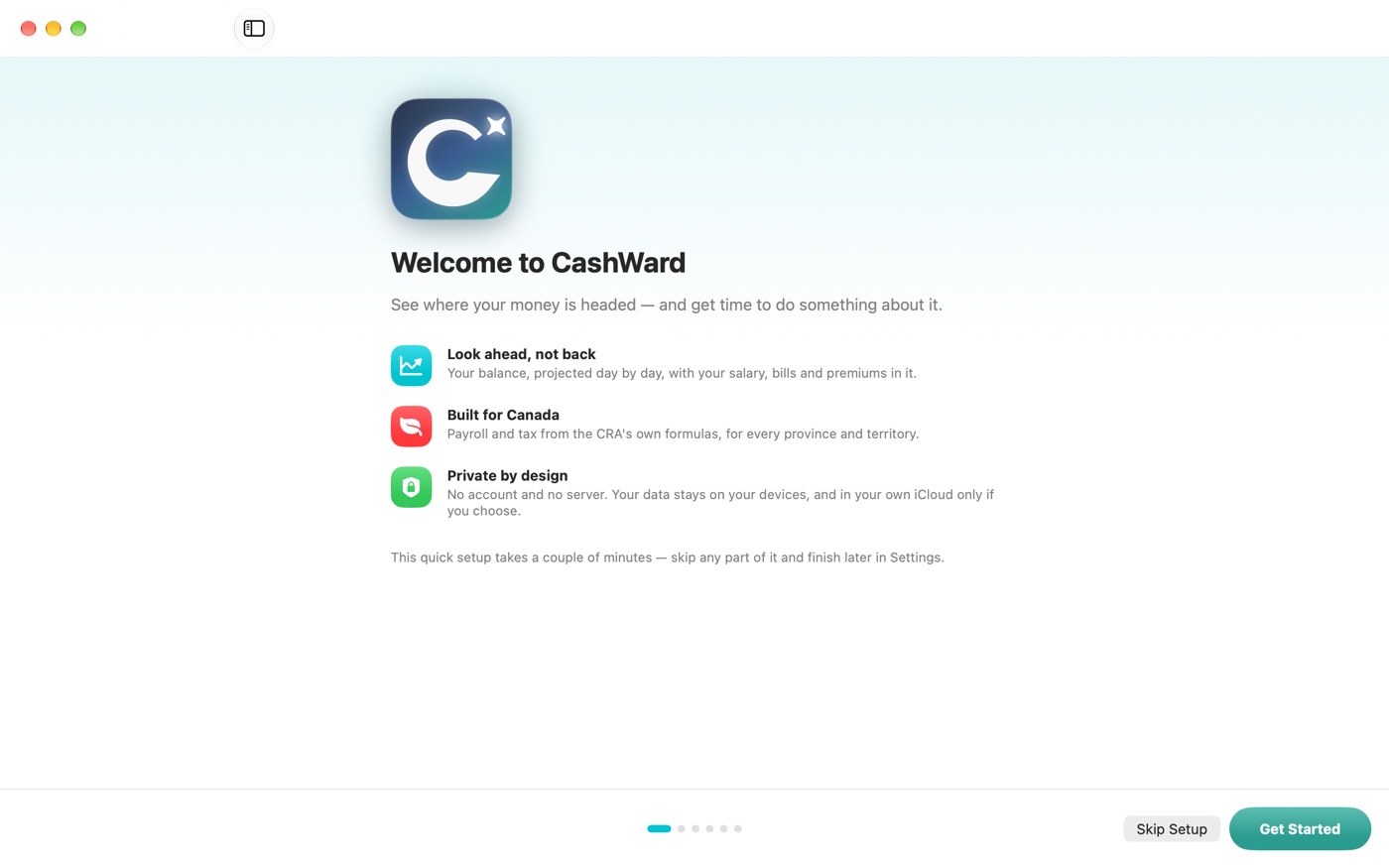
The first time you open CashWard, a short setup walks you through six screens: a welcome, a note on Canadian payroll rules, your household, your accounts, income and bills, an optional Apple Calendar link, and a finish screen. You can skip any of it — Skip Setup is always available — and everything you skip can be done later from the sections described in this manual.
2.2Your first forecast
Add yourself. Under Settings › People (or on the setup's household screen), choose Add Person, enter a name, and pick your province or territory. This is what decides payroll and tax calculations for your income. Add everyone whose money you want to plan together.
Add an account. Open Chapter 6, Accounts and choose Add Account. Pick the kind (chequing is a good start), give it a name, and enter its balance as of today. The forecast starts from this number.
Add your income. In Chapter 7, Income and Payroll, choose Add Income, pick a person and a kind (Salary is the most common), then follow the prompt to enter the pay amount and schedule. See Section 7.2, Salary.
Add a bill or two. In Chapter 8, Bills and Subscriptions, choose Add Bill for your rent or mortgage and anything else that recurs. Give each a first due date and how often it repeats. See Section 8.1, Adding a bill.
Open the Dashboard. The ring in the middle shows your cash and whether you're on track for the next 30 days. Tap the Financial Horizon card to see the whole forecast. See Chapter 4, The Dashboard.
Set your safety balance. In Settings › Preferences, set the lowest balance you're comfortable with (it starts at $500). CashWard warns you whenever the forecast dips below it.
2.3What to do next
- Add your debts and see when you could be debt-free: Section 12.2, Debt payoff.
- Track your auto and home insurance and compare quotes: Chapter 10, Insurance.
- Attach a bill or policy so it's one tap away: Chapter 14, Attached Documents.
- Make a backup — especially before you trust the app with real data: Chapter 15, Backup and Restore.
You don't have to enter everything. The Financial Horizon works with whatever you've added — start with one account, your pay, and your biggest bills, and add more over time.
3Finding Your Way Around
Ten sections, one consistent layout, and the same gestures everywhere.
3.1On Mac and iPad
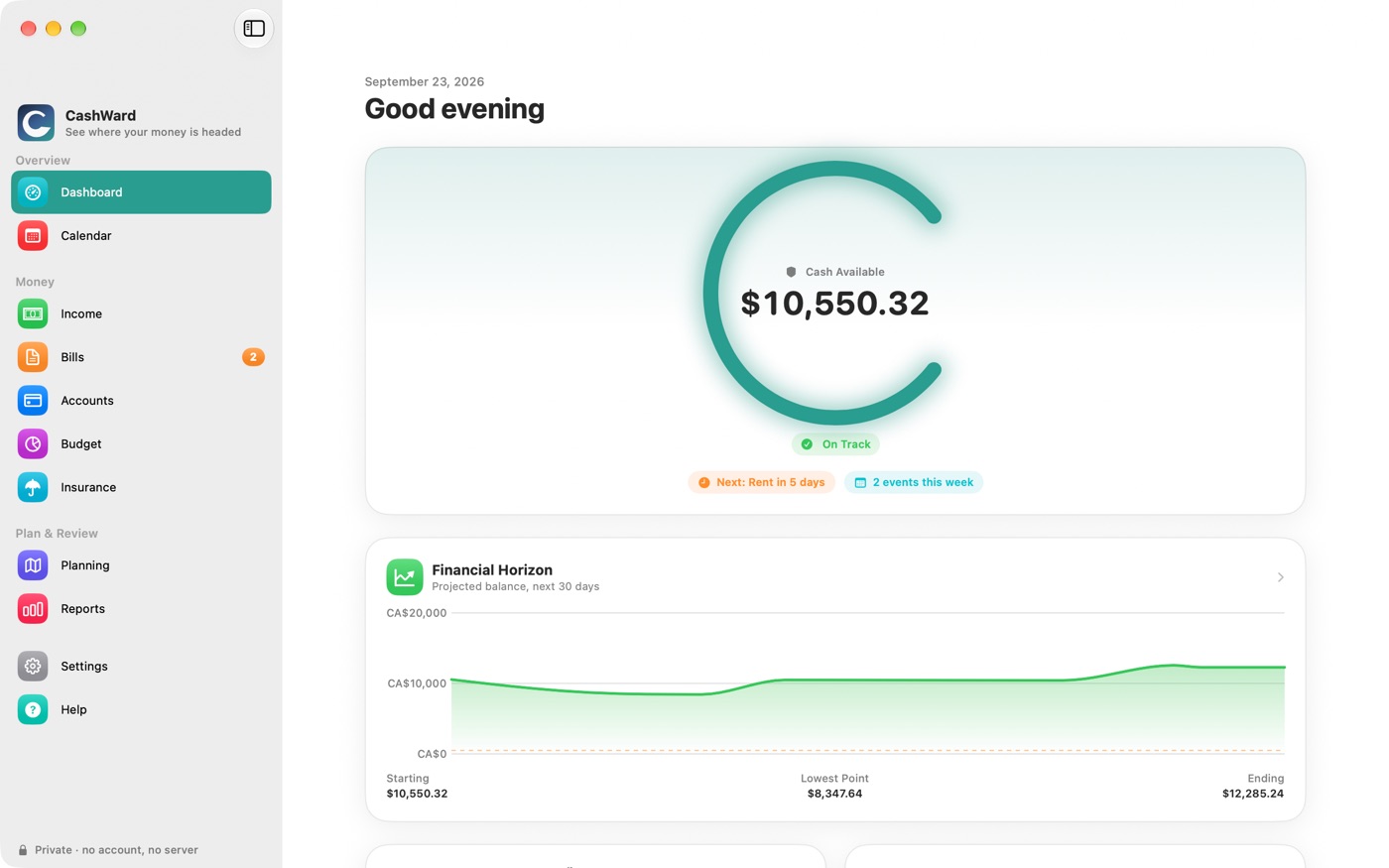
The sidebar on the left lists every section, grouped by what it's for:
| Group | Sections |
|---|---|
| Overview | Chapter 4, The Dashboard · Chapter 11, Calendar |
| Money | Chapter 7, Income and Payroll · Chapter 8, Bills and Subscriptions · Chapter 6, Accounts · Chapter 9, Budget · Chapter 10, Insurance |
| Plan & Review | Chapter 12, Planning: Taxes, Debt and Scenarios · Chapter 13, Reports |
| Below | Chapter 17, Settings and Security · Help (this manual) |
A small number beside Bills counts bills due within the next week; beside Insurance it counts policies renewing within 30 days. A note at the bottom of the sidebar reminds you that CashWard has no account and no server.
3.2On iPhone
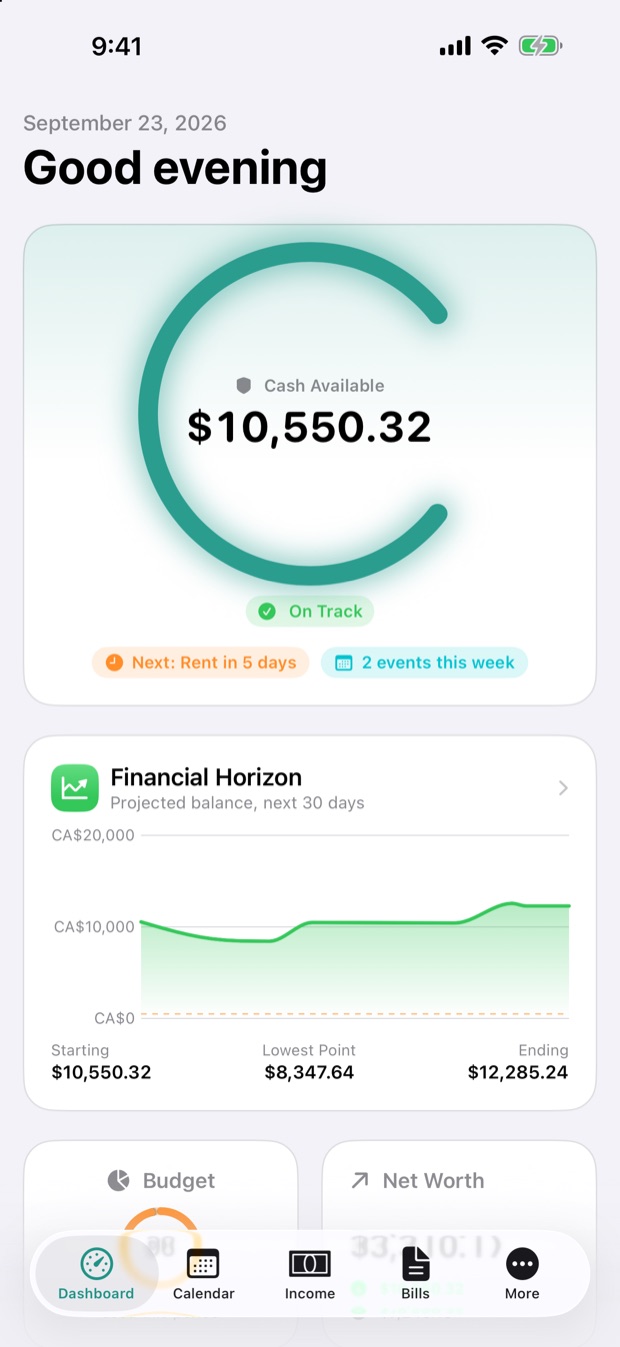
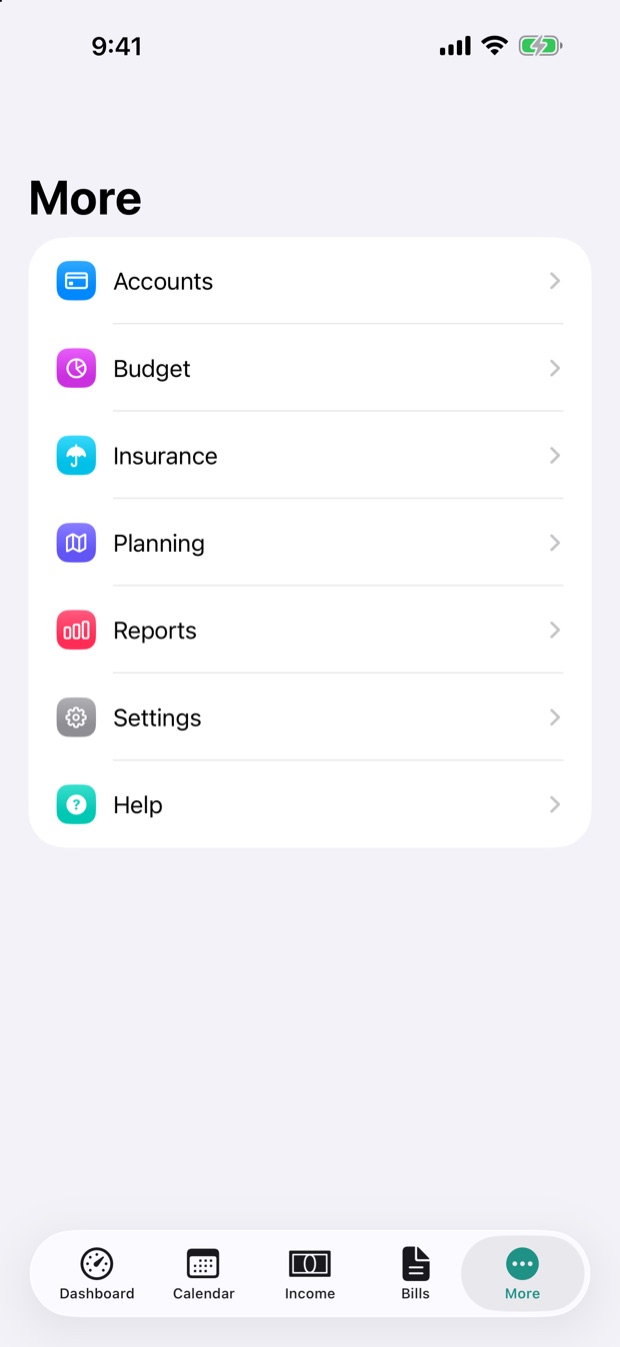
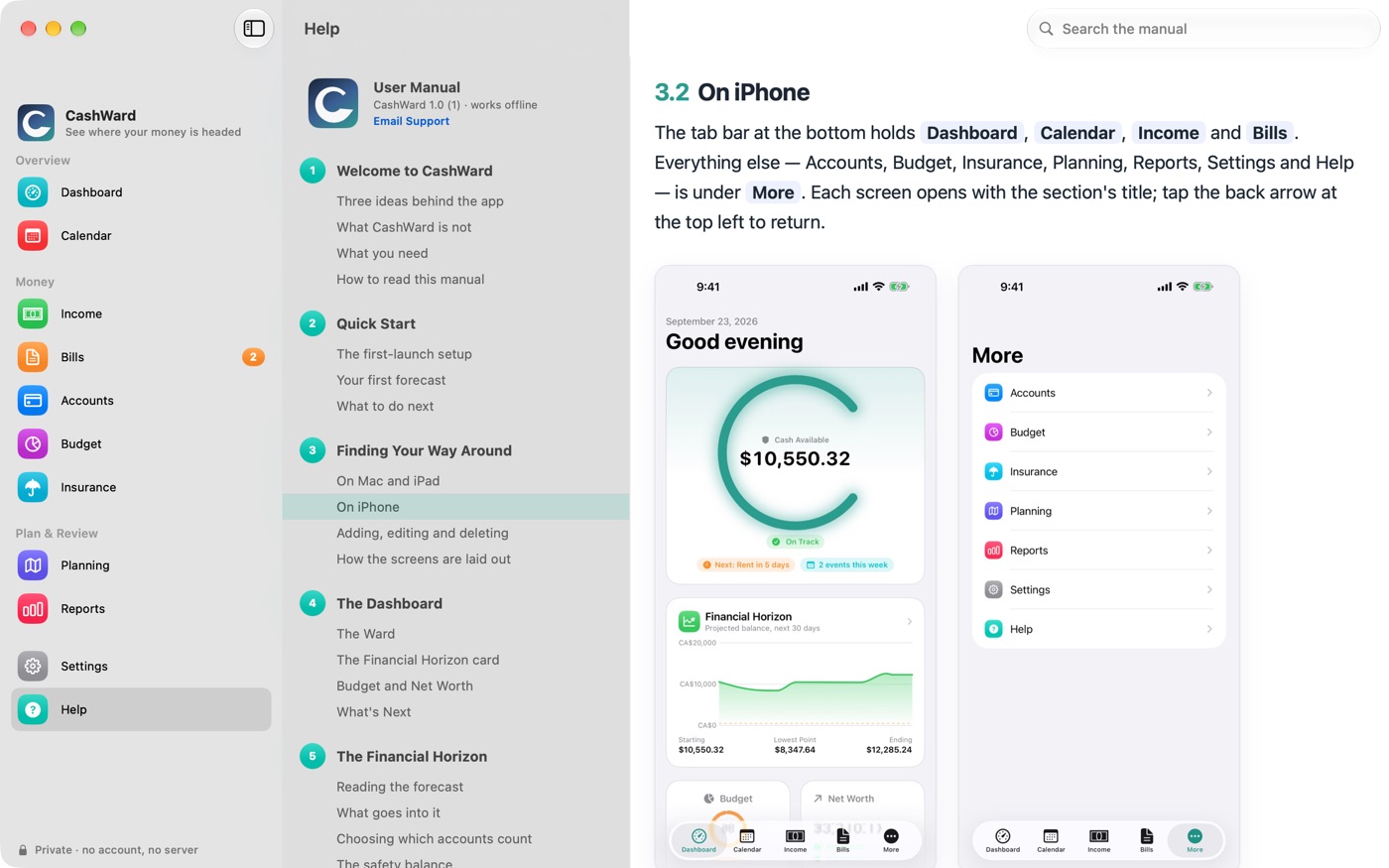
The tab bar at the bottom holds Dashboard, Calendar, Income and Bills. Everything else — Accounts, Budget, Insurance, Planning, Reports, Settings and Help — is under More. Each screen opens with the section's title; tap the back arrow at the top left to return.
3.3Adding, editing and deleting
- Add with the + button at the top of a screen, or the button in the empty state when a section has nothing yet.
- Edit by opening an item and choosing Edit (some rows, like a budget or a subscription, open the editor when you tap them).
- Delete by swiping a row to the left (iPhone and iPad) or right-clicking it (Mac).
Deleting removes an item from every screen. If you delete something by mistake, add it again or restore a recent backup (see Chapter 15, Backup and Restore).
3.4How the screens are laid out
Most sections open with a coloured summary card — your net worth, what's due in the next 30 days, what you pay for insurance — followed by the details, grouped by what needs your attention first. Small rounded labels ("chips") carry facts such as Due in 3 days or Autopay. Status is always shown in words and an icon as well as colour: On Track, Watch and Action Recommended.
CashWard follows your device's light or dark appearance, and respects the Reduce Motion accessibility setting.
4The Dashboard
Today, at a glance: your cash, whether the next 30 days are safe, and what's coming.
4.1The Ward
The ring at the top is the Ward — CashWard's status signal, drawn from the same open "C" as the app icon. Inside it is Cash Available: the total of your asset accounts (chequing, savings, cash, investments and other assets) that have a balance recorded. Credit cards and loans aren't subtracted here; they appear in Net Worth. If an account has no balance yet, a note tells you it isn't included.
The ring's look and the badge beneath it summarise the next 30 days:
| Status | What you see | What it means |
|---|---|---|
| On Track | A solid teal ring | Your projected balance stays above your safety balance for the next 30 days. |
| Watch | An amber ring, and the date | At some point your balance is projected to dip below your safety balance (but not below zero). |
| Action Recommended | A broken red ring, and the date | Your balance is projected to go below zero. Time to move a payment, trim a bill, or add funds. |
Two chips under the badge give the next thing due ("Next: Rent in 5 days") and how many events fall in the coming week. Tap the card to open the full Chapter 5, The Financial Horizon.
4.2The Financial Horizon card
A 30-day chart of your projected balance, with a dashed line at your safety balance, and the starting, lowest and ending balances below it. Tap it for the full forecast.
4.3Budget and Net Worth
The Budget tile shows how much of your total budget you've used this period; tap it to open Chapter 9, Budget. The Net Worth tile shows what you own minus what you owe, with both amounts under it; tap it for Chapter 13, Reports.
4.4What's Next
A seven-day strip with a dot on each day that has something scheduled, and below it the next few events: bills, subscription renewals, paydays and insurance renewals. Each carries an icon for what it is, and a status badge only when it's something to notice (due today, due soon, overdue). See Full Calendar opens Chapter 11, Calendar.
Until you've added an account with a balance, there's nothing to show. Add one in Chapter 6, Accounts, then a bill or your pay, and the Dashboard fills in.
5The Financial Horizon
Your balance, day by day, from today to as far ahead as a year — with the reasons.
Open it from the Dashboard's Financial Horizon card or from Planning › Cash Flow.
5.1Reading the forecast
- Horizon — choose 30, 60 or 90 days, or 3, 6 or 12 months.
- Projected Ending Balance — where your money lands at the end of the period, inside a Ward ring that reflects the same status as the Dashboard.
- Starting Balance and Lowest Point — where you begin, and the lowest the forecast goes, with its date.
- Balance Over Time — a chart of the running balance with a dashed line at your safety balance.
- Chronology — every event in date order, each with an icon, the amount, and the balance after it. The balance turns orange when it's below your safety balance and red when it's below zero, so you can see exactly which bill causes the dip.
5.2What goes into it
| Included | How |
|---|---|
| Bills | Every upcoming due date from each bill's schedule. A date you've marked paid or skipped is left out. |
| Subscriptions | Each renewal. |
| Salary | Each payday, as an estimated take-home amount (after estimated tax, CPP, EI and your deductions). |
| Date-bounded contracts | Each payday within the contract, as estimated take-home. |
| Debt payments | The minimum payment on each debt whose terms you've entered, on the 1st of each month. |
| Insurance | Every open policy has an automatic bill, so its premium is in the bills above. |
- Hourly income has no fixed payday to schedule, so it isn't in the forecast yet.
- One-off income kinds — contract, variable, commission, bonus, pension, government benefit, investment and other — appear in Income and the Calendar but aren't added to the forecast.
- Your everyday spending (groceries, fuel) isn't forecast unless you enter it as a bill or subscription.
The forecast assumes steady pay all year and uses today's calculated debt minimums. Payroll rules are verified through the end of 2026; pay dates after that reuse 2026's rates as a placeholder. It is a planning aid, not a certified forecast.
5.3Choosing which accounts count
If you have two or more asset accounts, an Included Accounts section lets you switch accounts on or off for the starting balance — for example, to leave out a savings account earmarked for something else. The Dashboard's Cash Available always counts every account.
5.4The safety balance
The safety balance is your personal floor. Set it in Settings › Preferences › Safety Balance (it starts at $500). Below it the status is Watch; below zero it's Action Recommended.
If the forecast looks better or worse than you expect, check the Chronology first. A missing bill, or one you forgot to mark paid, is the most common reason. See Chapter 19, Troubleshooting and FAQ.
6Accounts
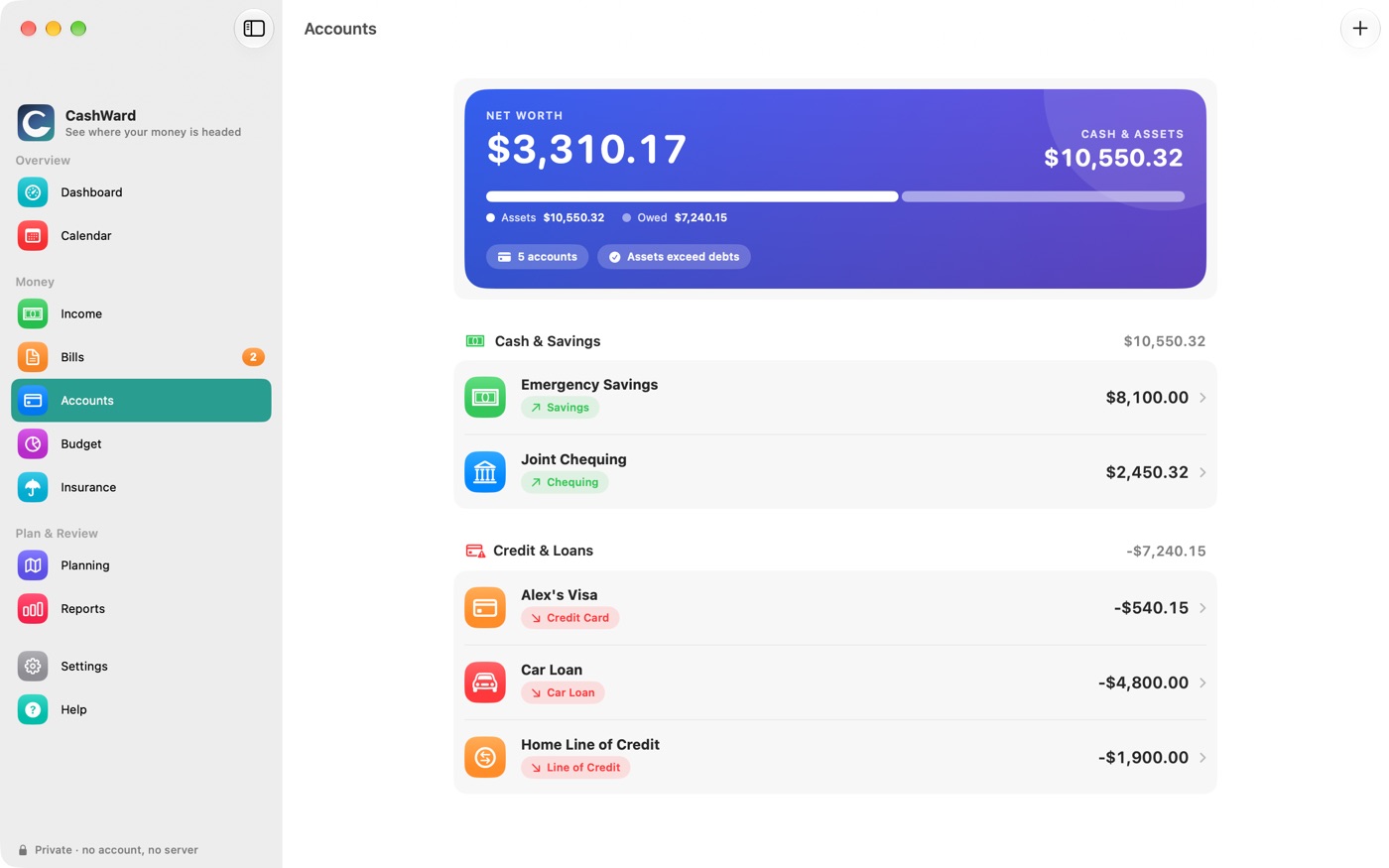
Where your money is — and what you owe — with your net worth on top.
6.1Adding an account
Open Accounts and choose Add Account (or the + button).
Enter a Name, choose the Kind, and set Ownership: Personal (then pick an Owner), Joint, or Household.
Under Opening Balance, enter the balance as of today. For a credit card or loan, enter what you owe.
Choose Save.
6.2Account types
| Group | Kinds |
|---|---|
| Cash & Savings | Chequing, Savings, Cash |
| Investments & Other Assets | Investment, Other Asset |
| Credit & Loans | Credit Card, Line of Credit, Mortgage, Personal Loan, Student Loan, Car Loan, Car Lease, Other Liability |
Assets count toward Cash Available and net worth; credit and loans count against net worth and are what you plan with in Section 12.2, Debt payoff.
6.3Keeping balances current
CashWard doesn't read your bank, so a balance is only as fresh as your last update. Open the account and choose Update Balance: enter the Balance, an Effective Date and an optional note. Each update is added to the account's History — nothing is overwritten — and the account's current balance is the latest one.
Update your chequing balance whenever you sit down with the app — once a week is plenty. The forecast starts from that number.
6.4Transactions
Transactions are a record of what went in and out of an account. Open an account and choose Add Transaction to enter one by hand: a Payee, Date, Type (expense or income), Amount, optional notes and a Category.
Adding or importing transactions does not change an account's balance, and the forecast doesn't depend on them. Update the balance separately as described above.
6.5Importing from your bank
CashWard never connects to your bank, but you can import a statement file you download from your bank's or card issuer's own website. It reads CSV, OFX and QFX files.
Open the account and choose Import Transactions….
Choose Choose File… and pick the file. The file is read on your device and never leaves it.
For a CSV, tell CashWard which column is which: whether the first row is a header, the date column and its format, the description column, and how amounts appear — a single amount column (with a switch for whether expenses are negative) or separate debit and credit columns. Then choose Preview. OFX and QFX files need no mapping.
Review the list. Untick anything you don't want; rows already on file are marked Already imported.
Choose Import. CashWard reports how many were imported and how many duplicates were skipped.
Importing the same file twice is safe — duplicates are recognised and skipped.
6.6Net worth
The card at the top shows Net Worth (assets minus what you owe) and your total assets, with a bar showing the balance between what you own and what you owe. Accounts with no balance yet are left out until you add one.
6.7Deleting an account
Swipe the account to the left, or right-click it on a Mac, and choose Delete. It disappears from every screen. There is no Undo (see Section 3.3, Adding, editing and deleting).
7Income and Payroll
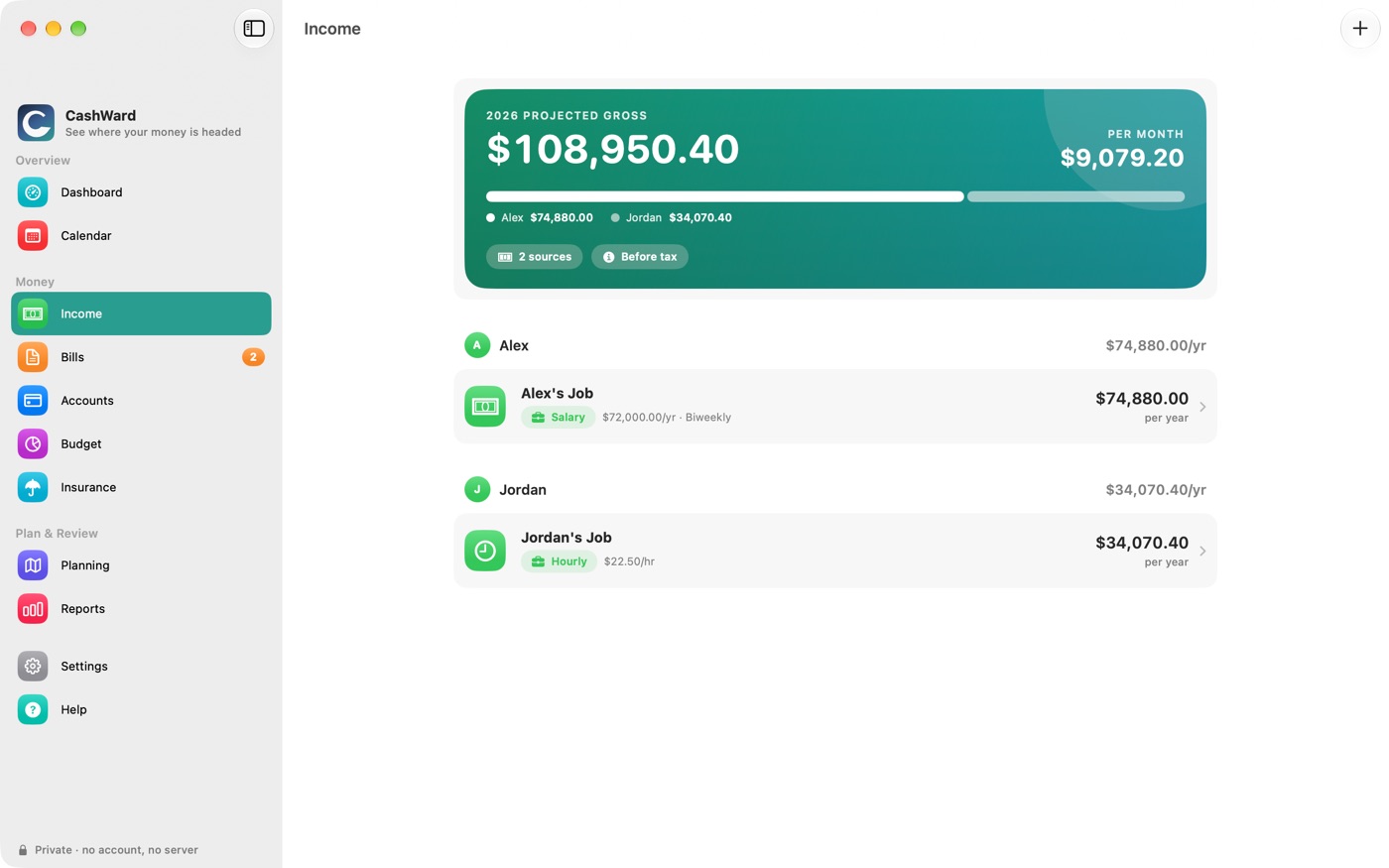
Salary, hourly work, contracts and one-off payments — for everyone in the household.
7.1Adding an income source
Open Income and choose Add Income.
Give it a Name, choose the Kind and the Person it belongs to. For jobs, add the Employer and Position.
Choose Save, then open the new source to set up its pay. The steps depend on the kind, below.
| Kind | Use it for | Set up with |
|---|---|---|
| Salary | A fixed annual pay | Compensation periods |
| Hourly | Pay by the hour with varying weeks | An hourly profile and weekly hours |
| Contract (Hourly, Date-Bounded) | Contract work with a start and end date | Contract periods |
| Contract, Variable, Commission, Bonus, Pension, Government Benefit, Investment, Other | Payments that aren't a steady paycheque | Expected payments |
7.2Salary
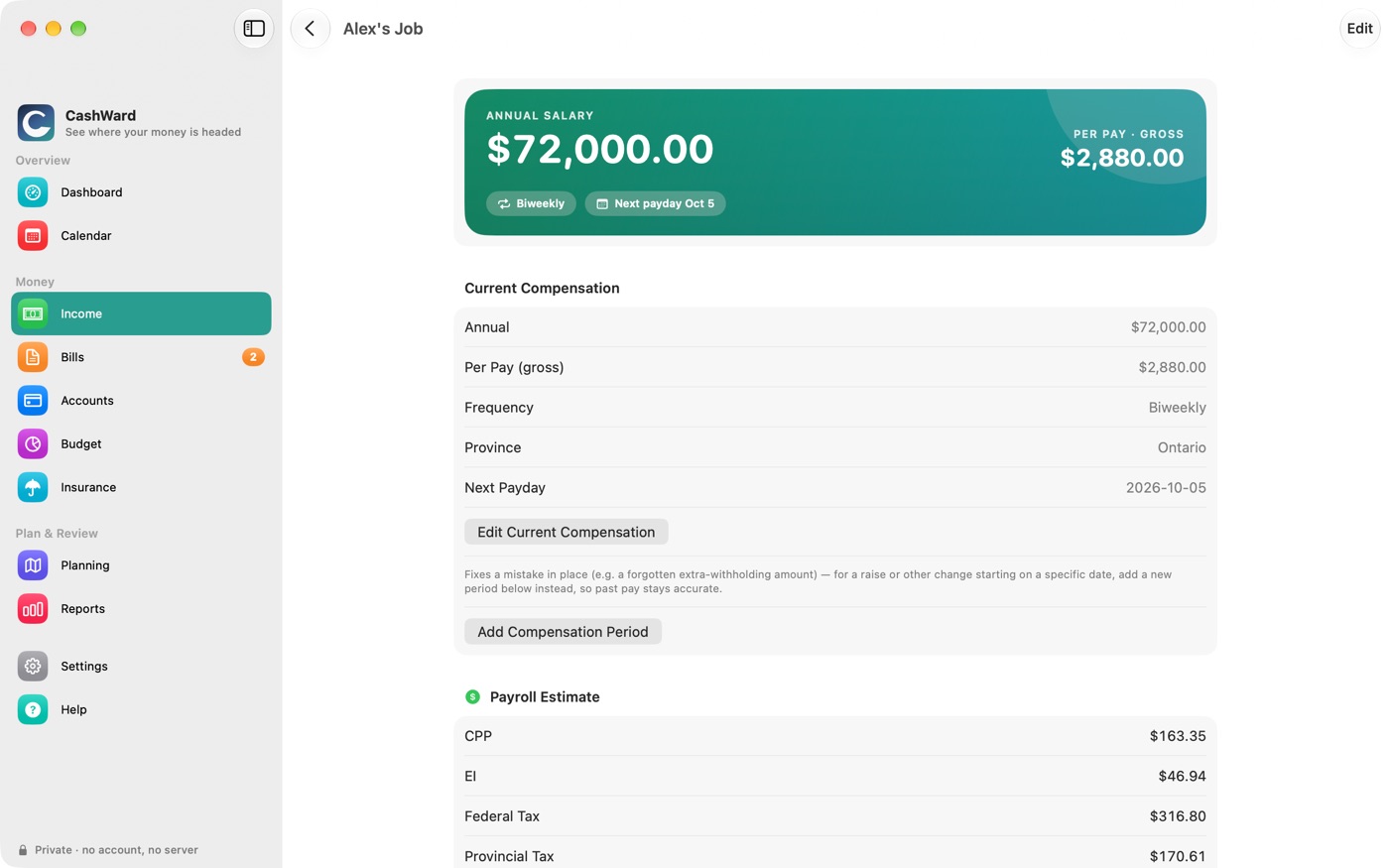
Open the source and choose Add Compensation Period. Enter the Annual Amount, the Effective Start Date and the Province of Employment; under Pay Schedule pick the Frequency (Weekly, Biweekly, Semi-Monthly or Monthly) and A Recent or Upcoming Payday — a date one of your real paydays falls on, from which future pay dates are calculated; and, if they apply, set Vacation (Paid Per Pay and a percentage) and the Optional items, Taxable Benefits Per Pay and Extra Withholding Per Pay.
A raise is a new period, not an edit. When your pay changes, add a new compensation period effective from the date it starts. Your previous rates stay in the History so past and future forecasts each use the right one.
7.3Payroll estimates
For each salary and contract period, CashWard shows an estimate of a single paycheque: gross pay, then federal and provincial income tax, CPP (including CPP2) and EI, your deductions, and the resulting take-home pay. The formulas come from the Canada Revenue Agency's published payroll rules (T4127) for every province and territory except Quebec.
Quebec runs its own payroll system separately from the CRA, and CashWard never estimates payroll rules it hasn't verified. If a person's province is Quebec, CashWard says so instead of showing a number.
Payroll figures assume steady pay and are a planning aid. They won't match your pay stub to the cent, and aren't a substitute for an accountant or for filing your taxes. Rules are verified through the end of 2026.
7.4Deductions
Choose Add Deduction on a salary or contract source to record what comes off each paycheque: Health, Dental, Life Insurance, Pension, RRSP, Union Dues, Parking, Savings, or a Custom one. Set the Amount Type (a fixed amount or a percentage) and the Tax Treatment: Pre-Tax (reduces taxable pay, as an RRSP usually does), Post-Tax, or Informational Only.
7.5Hourly income
Open the source and choose Set Up Hourly Profile: enter the Hourly Rate and Default Hours Per Week, the province and pay frequency, the Overtime Threshold (hours per week) and Overtime Multiplier, and any extra withholding. Then, each week, enter your Hours and choose Save Week; CashWard shows the estimated gross for the week. Recent weeks are listed below.
The overtime threshold is whatever you set. Check your province's Employment Standards for the legal minimum.
Hourly income appears in Income and in the Tax Position, but has no fixed payday, so it isn't included in the Chapter 5, The Financial Horizon forecast.
7.6Date-bounded contracts
For contract work with a start and end date, use the kind Contract (Hourly, Date-Bounded) and choose Add Contract Period: a Label (for example "Fall 2026"), Start Date and End Date, Hourly Rate, Normal Hours Per Week, the First Pay Date, any extra withholding, and a switch for This Is a Partial Load Contract.
Inside a period you can:
- set a Teaching Schedule (Add Teaching Day) — the hours you work on each weekday — so that Ontario statutory holidays landing on a scheduled day are taken off that week automatically (unless it's a partial load, which is paid through them);
- tap any week in Weeks to override its hours, or swipe (or right-click) to Zero Out a week — an unpaid reading week, a holiday, a mid-contract change — and Reset it back. CashWard doesn't know your employer's own closures, so override those weeks yourself.
The automatic statutory-holiday adjustment uses Ontario's holidays. For other provinces, use a week override.
7.7One-off and irregular payments
For the other kinds, choose Add Expected Payment, enter the Expected Amount, the date and optional notes. When the money arrives, choose Mark Received. Expected payments show up in the Chapter 11, Calendar.
7.8Several people, several jobs
Every income source belongs to a person, and the Income screen groups them that way, with a yearly subtotal for each. The Section 12.1, Tax Position combines each person's sources into one position.
8Bills and Subscriptions
Everything that recurs, sorted by what needs attention first.
8.1Adding a bill
Open Bills (the Bills tab, not Subscriptions) and choose Add Bill.
Under Bill, enter a Name and Payee, choose an Amount Type — Fixed or Variable — and enter the Amount.
Under Schedule, set the First Due Date and Repeats: Weekly, Every 2 Weeks, Monthly, Every 3 Months, Every 6 Months or Annually.
Under Payment, optionally choose the Account it's paid from and switch on Autopay if it's automatic.
Optionally choose a Category (use Add Category to make one) and turn on Remind Me to be reminded a set number of days before it's due.
Choose Save.
A variable bill, like a utility, doesn't repeat the same amount. Once you record an actual payment, upcoming forecasts use that amount instead. You still enter the real amount each time you mark it paid.
8.2The Bills screen
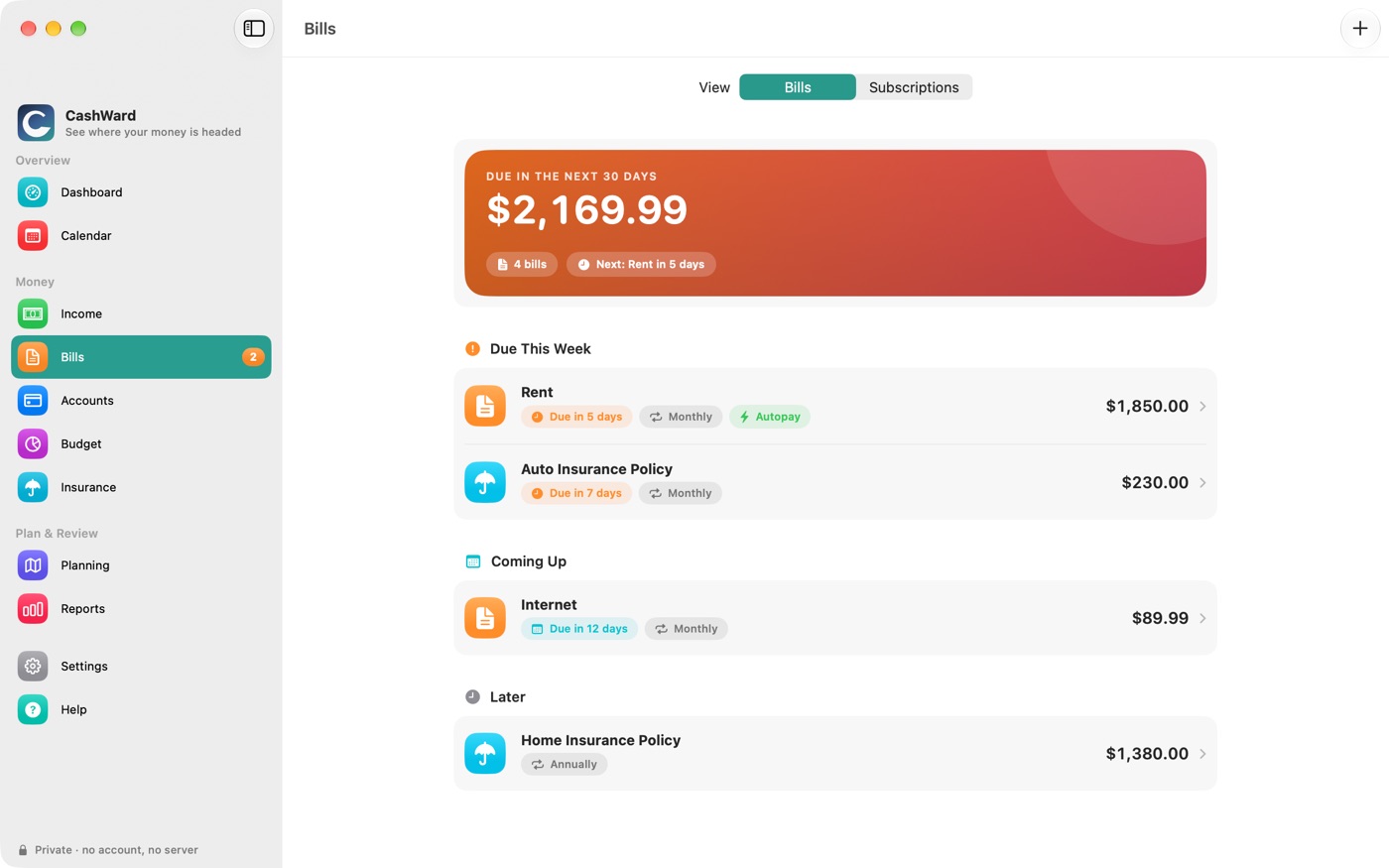
The card at the top totals what's due in the next 30 days and names the next bill. Below, bills are grouped Due This Week, Coming Up (within 30 days) and Later. Each row has chips for when it's due, how often it repeats, and whether it's on autopay. Bills that CashWard creates for your insurance policies show an umbrella icon (see Section 10.3, The automatic bill).
8.3Marking a bill paid
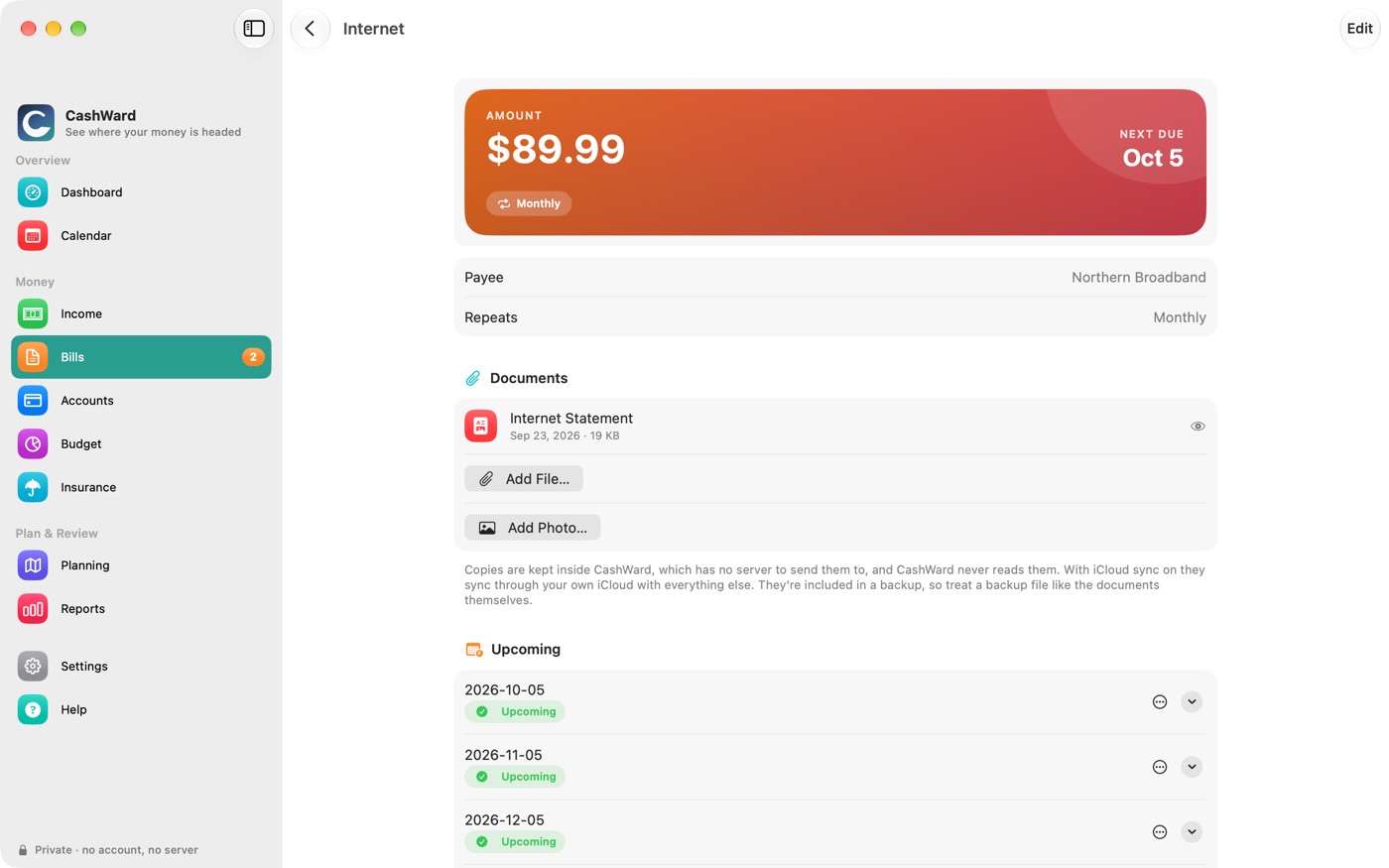
Open a bill to see its Upcoming due dates and its History. On any upcoming date, open the More Options menu and choose Mark Paid (enter the amount and date you actually paid) or Skip. Paid and skipped dates drop out of the forecast, and paid bills count toward your Chapter 9, Budget.
Marking bills paid keeps both your Financial Horizon and your Budget accurate. It only takes a tap when a bill goes out.
8.4Reminders
If you set Remind Me on a bill, go to Settings › Notifications and choose Enable Bill Reminders. CashWard schedules notifications on your device — nothing is sent through any server. Reminders are not re-scheduled automatically when bills change, so return to Settings and tap it again after editing bills.
8.5Subscriptions
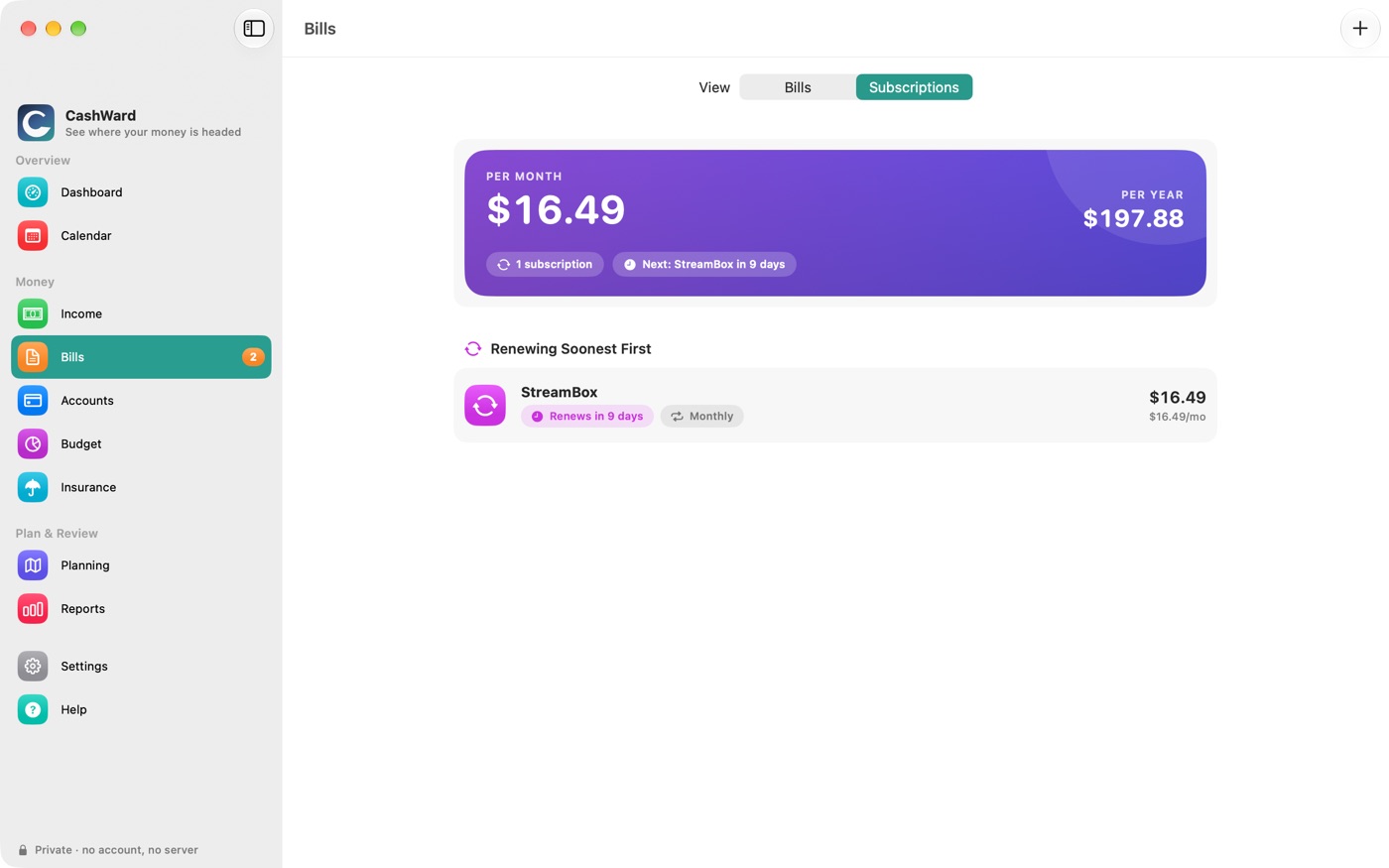
Switch to the Subscriptions tab and choose Add Subscription: a Service Name, Amount, Cadence, the Next Renewal date and optionally the account it's charged to. The card at the top shows what your subscriptions cost per month and per year, and the list runs soonest renewal first, each with its monthly equivalent. Tap a subscription to edit it.
8.6Keeping the paper with the bill
Open a bill and use the Documents section to attach a statement or a photo of it. See Chapter 14, Attached Documents.
9Budget
Set what you plan to spend in a category, and see how your paid bills measure up.
9.1Creating a budget
Open Budget and choose Add Budget (or the + button).
Enter the Amount, choose a Category (or Add Category) and the Period — Monthly or Annual.
Under Scope, choose whether it's a personal, joint or household budget.
Choose Save. Tap a budget any time to edit it.
9.2Reading your budgets
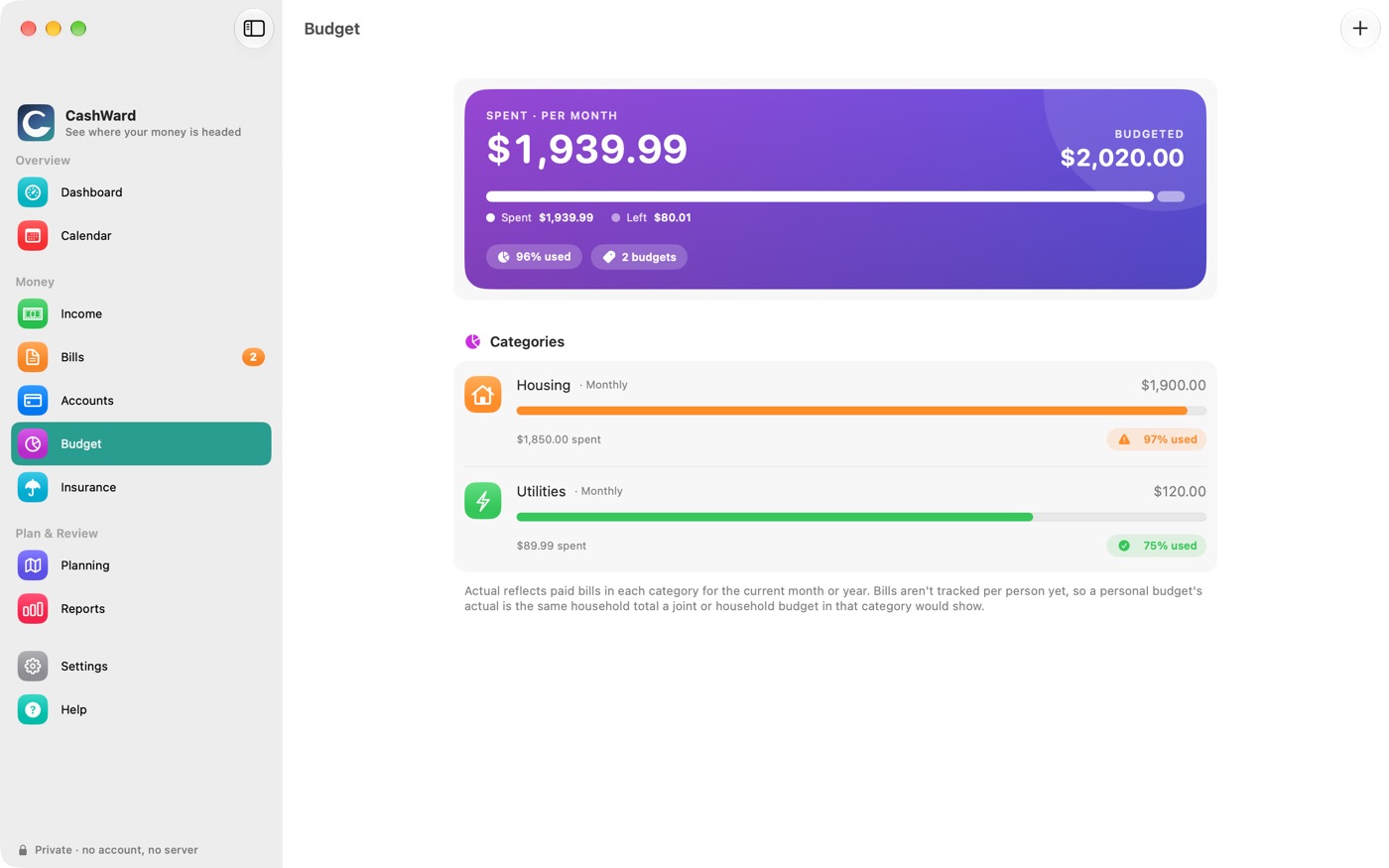
The card at the top shows what you've spent against what you've budgeted, per month (annual budgets are divided by twelve). Each category shows a progress bar and a badge: green while you're comfortably under, orange from 80% used, and red once you're over.
A budget's actual spending is the total of the bills in that category you've marked paid this month (or year). It doesn't read your transactions or your bank. To keep a budget accurate, give your bills a category and mark them paid (see Section 8.3, Marking a bill paid). Bills aren't tracked per person yet, so a personal budget shows the same household total as a household one in that category.
10Insurance
Track your auto and home policies, see exactly what you pay, and compare competing quotes before you switch.
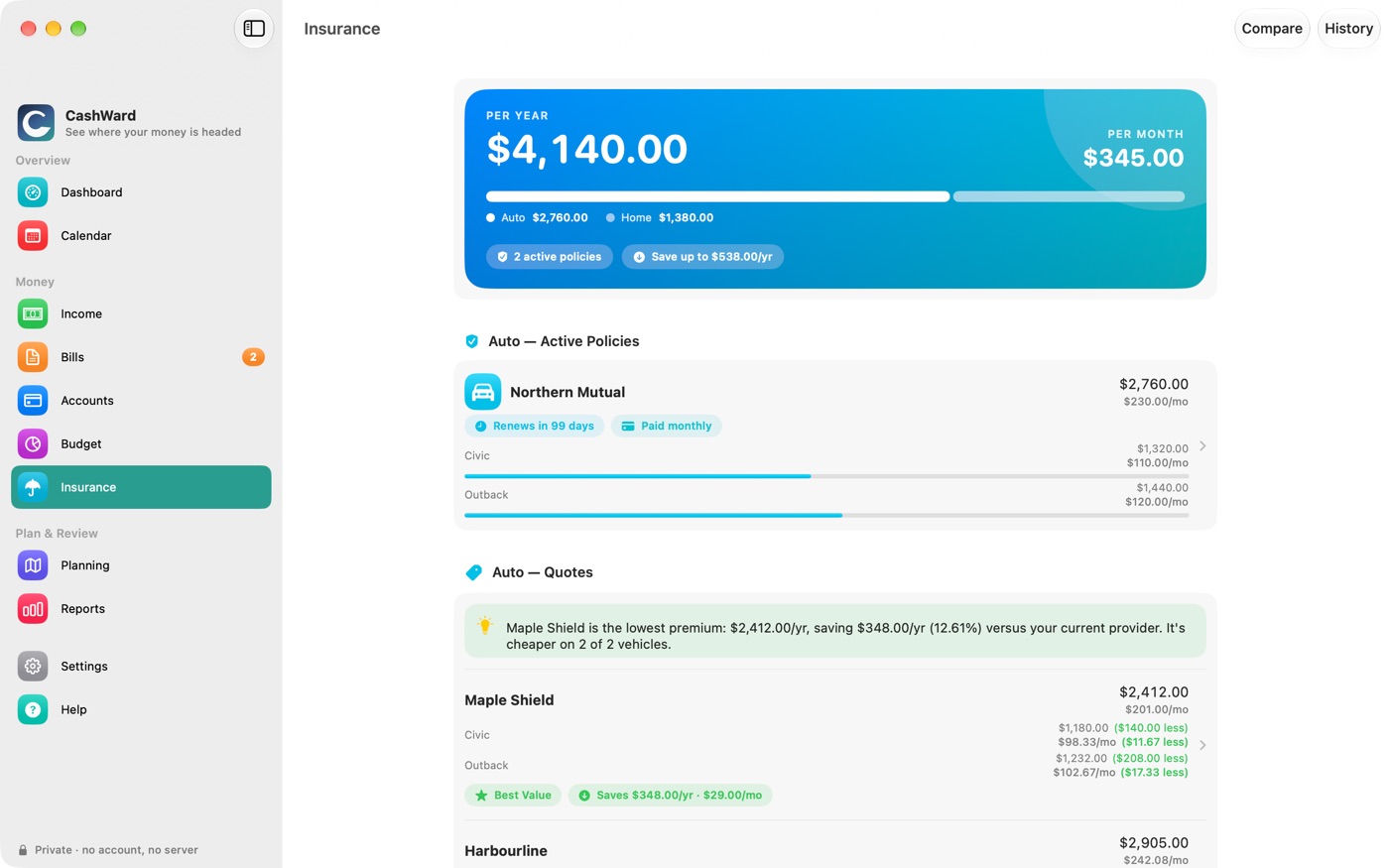
It never connects to insurers or the internet. You enter your policies and the quotes you've been given, and CashWard does the comparing — vehicle by vehicle, per year and per month. It's a planning aid, not insurance advice.
10.1The pieces
| Term | What it is |
|---|---|
| Vehicle or property | What's insured: a car (with optional year, make and model) or a home. Each has a driver or owner — a person, or "Household (shared)". |
| Policy | What you pay now: a provider, an annual premium, a renewal date, and the vehicles or properties it covers. One policy can cover several vehicles. |
| Quote | An offer from another provider (or the same one) that you're considering. |
| Share | Each vehicle's part of a policy's or quote's total — your own bookkeeping, used to compare vehicle by vehicle. It isn't sent to the insurer. |
10.2Adding what you have
Choose Add Vehicle or Property. Pick the Type, enter a Name and, for a vehicle, the optional year, make and model. Set the Driver / Owner and the Province. If the policy already exists you can pick it here and enter this vehicle's share.
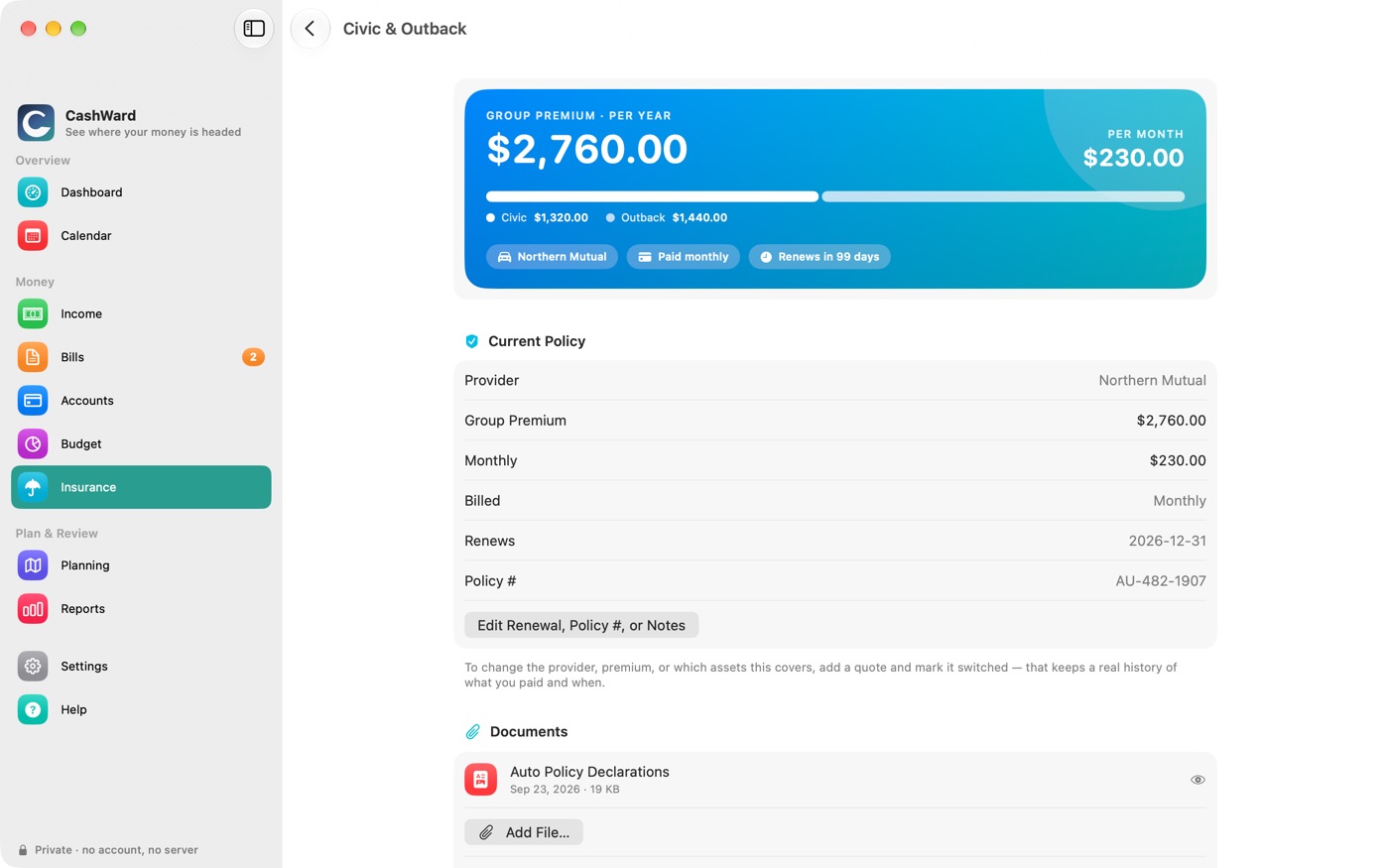
Choose Create a Policy. Pick the Type (auto or home), enter the Provider and the Annual Premium (always the full yearly figure), the Effective Start and Renewal Date, and choose how you pay under Billing: Annual or Monthly. A policy number and coverage notes are optional. Tick the vehicles or properties it covers, if you like.
To add a vehicle to an existing policy, open the policy and choose Add Vehicle to This Policy; set each vehicle's share with Set Amount (swipe it, or right-click on a Mac) or use Split Evenly.
The card at the top, What You Pay, adds up your running policies per year and per month and splits it between Auto and Home. Each policy row shows when it renews, how it's paid, and each vehicle's share.
10.3The automatic bill
Every open policy automatically gets a bill in Chapter 8, Bills and Subscriptions, named Auto Insurance Policy or Home Insurance Policy, with the provider as payee. That means the premium is already in your Chapter 5, The Financial Horizon and your Chapter 11, Calendar without any extra step.
- If the policy is billed Annually, the bill is the full premium, due on the renewal date.
- If it's billed Monthly, the bill is the premium divided by twelve, due monthly.
- Change the billing or the renewal date with Edit Renewal, Policy #, or Notes on the policy and the bill follows. When you switch to a new quote, the new policy's bill uses the new premium.
- When a policy closes or is deleted, its bill is archived so your history stays consistent.
10.4Adding and comparing quotes
Choose Add Quote: the Type, Provider, Annual Premium, Quoted On date, whether it expires (Quote Expires) and when, and notes. Then set each vehicle's Quoted Share so CashWard can compare like for like.
Quotes are listed cheapest first. The cheapest quote that beats what you pay carries a Best Value chip and a Saves chip with the yearly and monthly difference, and a short summary above the list says how much you'd save and on how many vehicles it's cheaper.
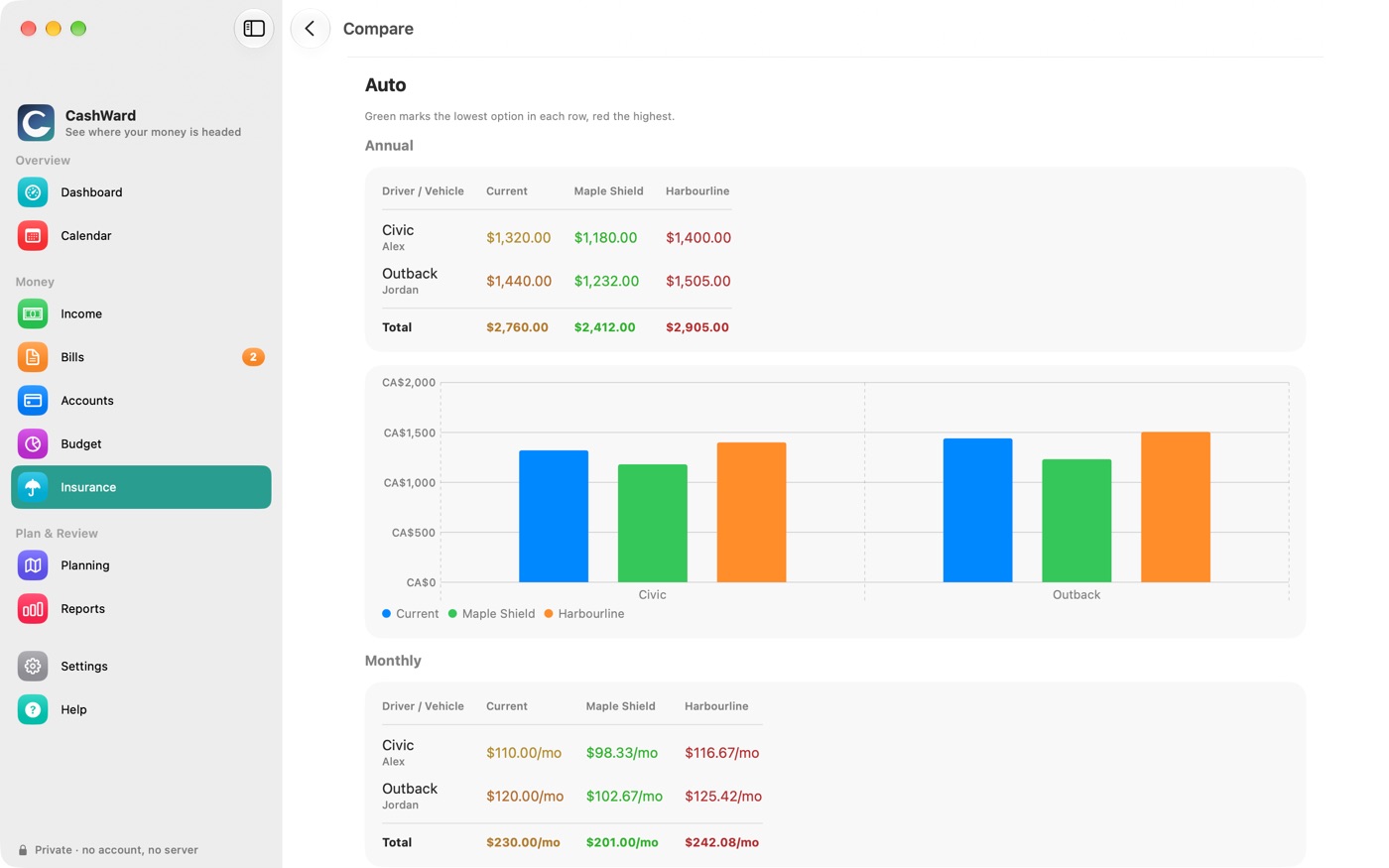
Choose Compare at the top of the Insurance screen for the full grid: a row per driver and vehicle, a column for what you pay now and one for each quote, totals underneath, and a chart. Within each row the cheapest option is green, the most expensive is red, and the ones between shade through orange. Below the annual grid is the same comparison per month — the number you budget with.
10.5Switching to a quote
Open the quote and choose Select This Quote.
Choose the Effective Date. Today means it takes effect right away; a future date means the new policy shows as Pending while your current one keeps running.
If you'd linked a bill of your own to a vehicle, CashWard offers to update its amount. Choose Confirm.
Your old policy is closed the day before the new one starts and moves to History, and the new policy remembers what it replaced so the screen can show how much you're saving since switching. A scheduled switch takes over on its date the next time you open CashWard (or the Insurance screen).
To decline a quote, open it and choose Decline.
10.6History
History lists closed policies and past quotes. A closed policy or a declined quote can be restored with Restore (swipe it, or right-click). Restoring a policy reopens it as an empty policy — it doesn't move any vehicles back onto it.
10.7Renewals
Each policy shows how many days until it renews, turning orange inside 30 days. The sidebar's Insurance badge counts policies renewing within 30 days.
Attach your policy documents on the policy itself — see Chapter 14, Attached Documents.
11Calendar
Paydays, bills, subscription renewals and insurance renewals, together.
11.1Upcoming, Week and Month
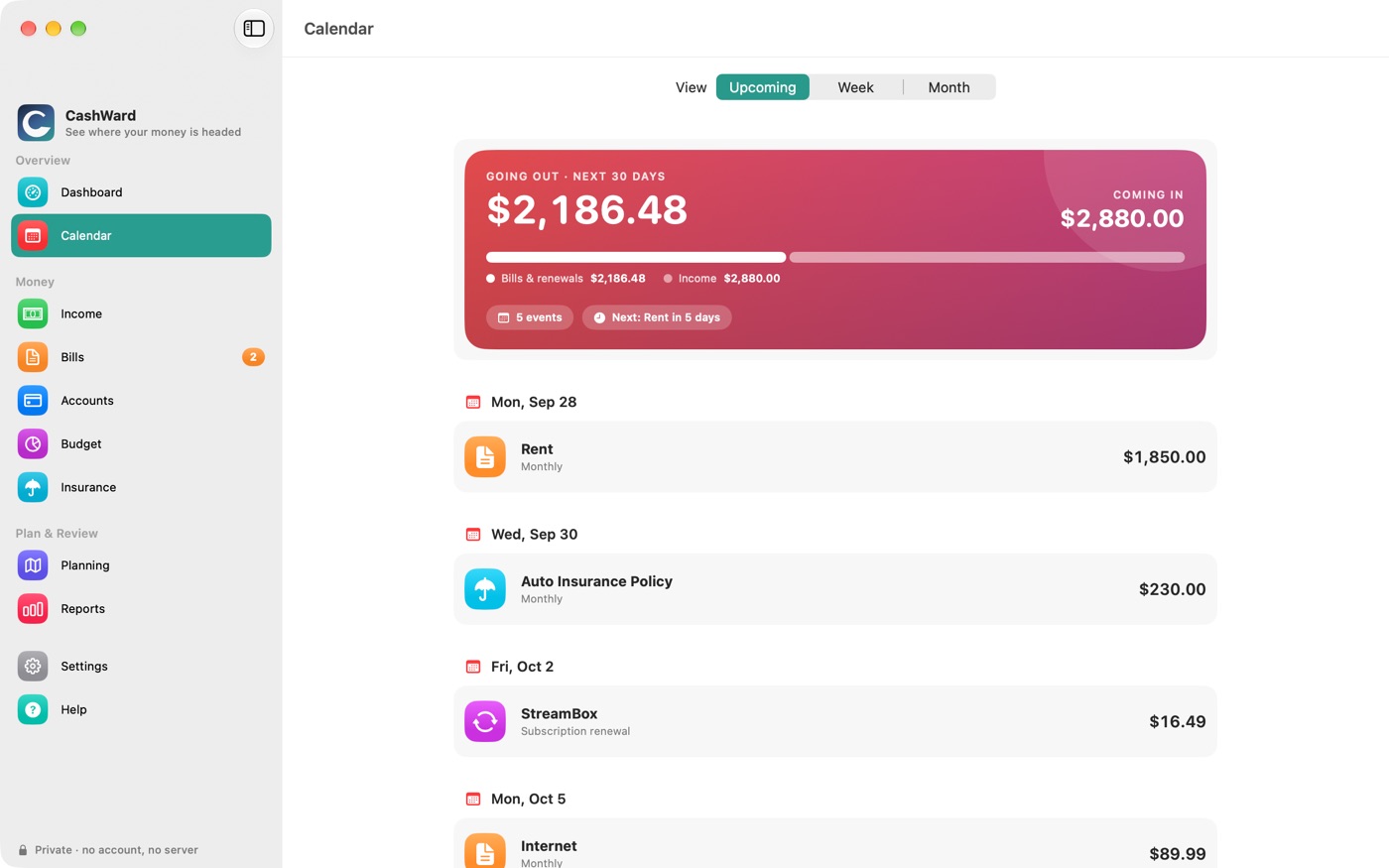
- Upcoming — a card with what's going out and what's coming in over the next 30 days, then every event by day ("Today", "Tomorrow", then the date). Overdue items are labelled.
- Week — a row of seven days, today ringed and the selected day filled, with a card underneath listing that day's events. Use the arrows to move week to week.
- Month — a grid of the month with a coloured dot on each day that has something scheduled (orange for bills, purple for subscriptions, green for income, light blue for insurance). Tap a day to see its events below.
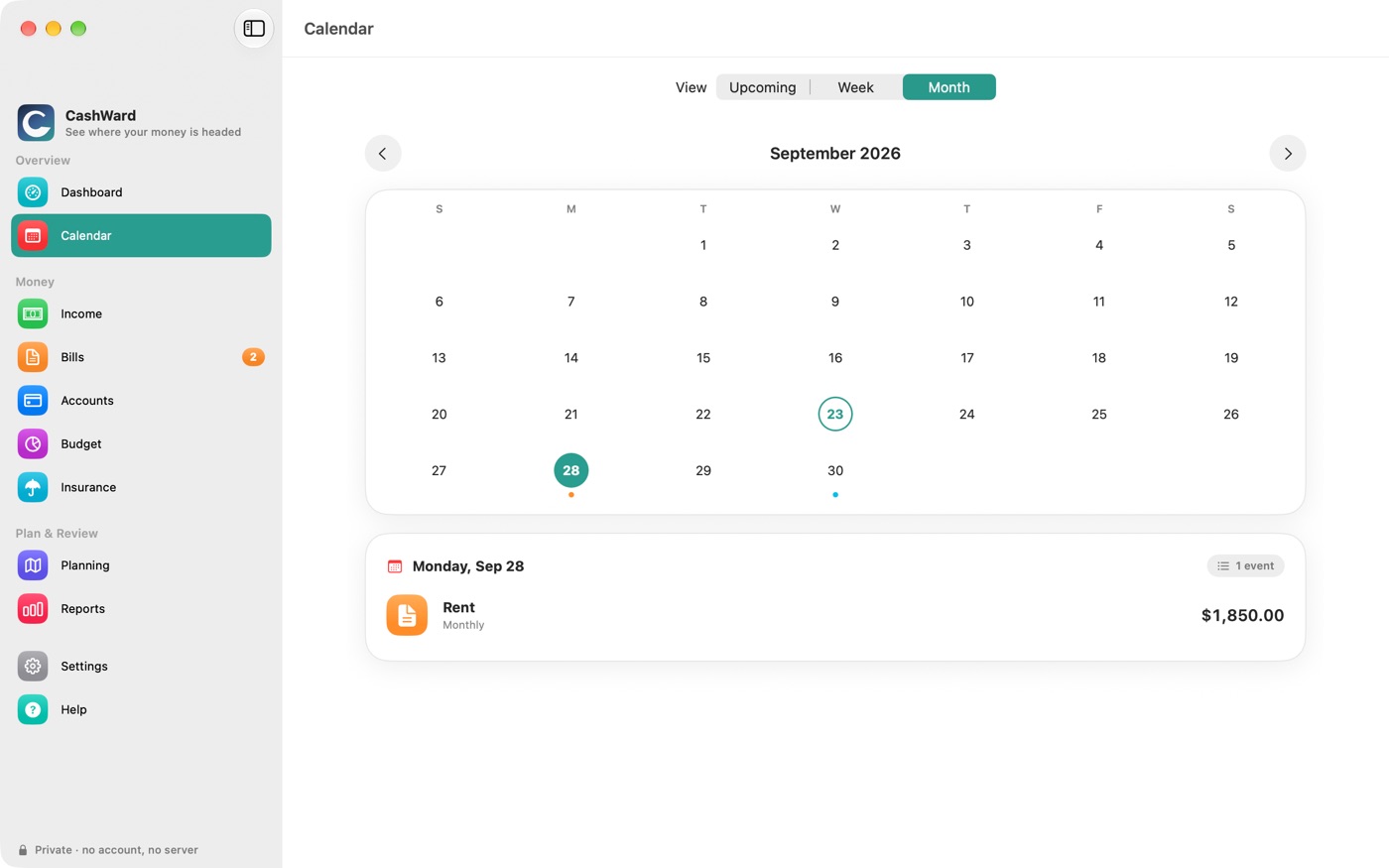
Each event has an icon for what it is, its amount (paydays in green with a plus), and a status badge only when it's something to notice.
Paydays appear as gross pay before tax withholding; the take-home estimate is in Section 7.3, Payroll estimates.
11.2Sending events to Apple Calendar
If you'd like bills and paydays alongside your other appointments, turn on Settings › Calendar Sync › Sync to Apple Calendar. CashWard asks for permission, then creates a separate calendar named CashWard with your upcoming bills, subscriptions and paydays, and keeps it up to date without creating duplicates. Turning it off removes that calendar and every event in it.
If your Calendar app syncs through iCloud or another account, the CashWard calendar syncs the same way any calendar does. That's a setting on your device, not something CashWard controls. Event titles include the item's name and amount.
12Planning: Taxes, Debt and Scenarios
Look further ahead: where your tax return is heading, how fast you could be debt-free, and what a raise would do.
Planning gathers four areas — Taxes, Debt, Cash Flow (the Chapter 5, The Financial Horizon) and Scenarios.
12.1Tax Position
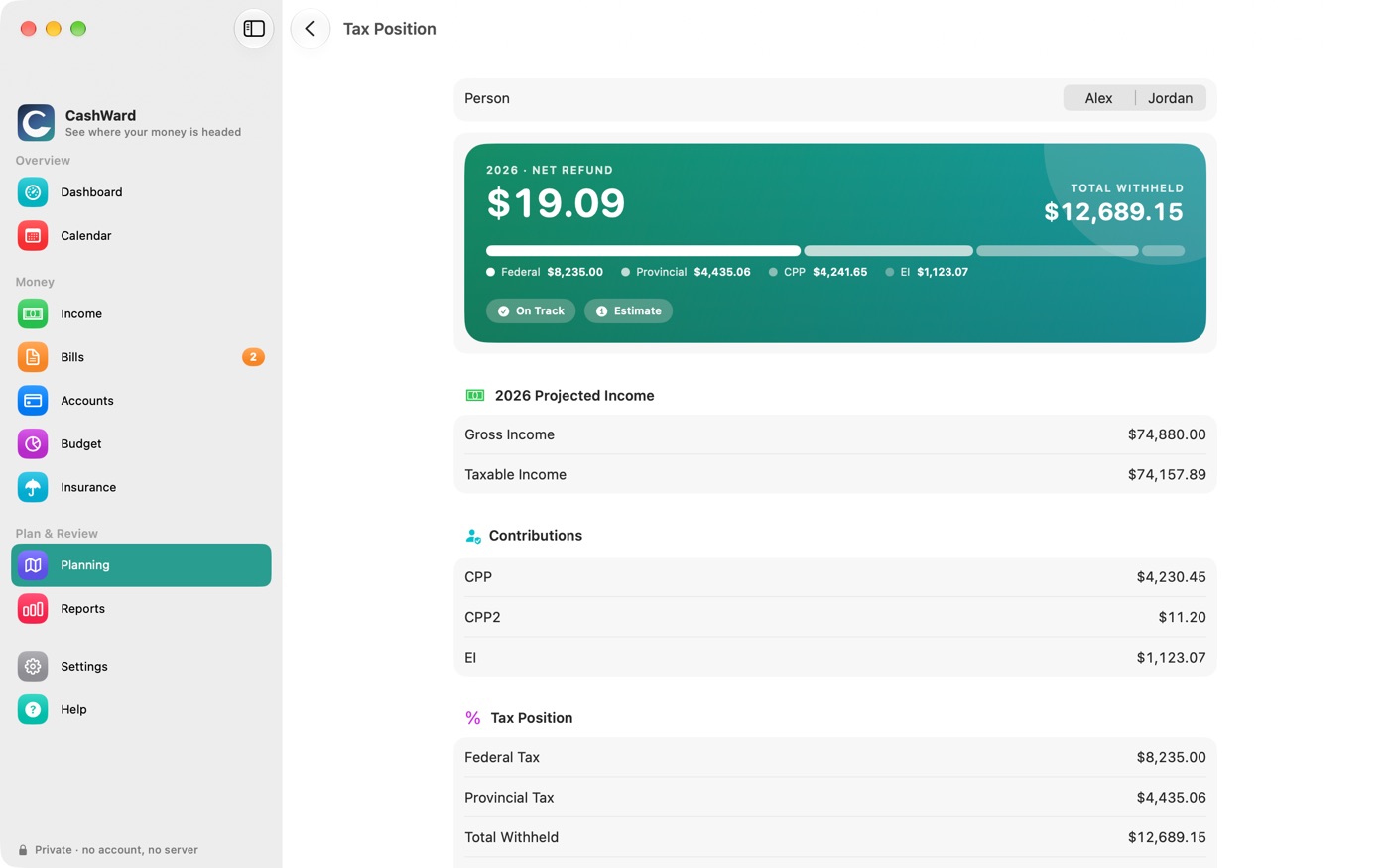
Tax Position projects your full year — for each person, across all their income sources — and shows whether you're heading for a refund or a balance owing. The card at the top gives the net result and total withheld, with a bar splitting it into federal tax, provincial tax, CPP and EI. Below it: projected gross and taxable income; your contributions (CPP, CPP2, EI, and any overpayment refunded when you file); and the tax position itself.
- Choose a person at the top when your household has more than one.
- Extra Reserve — enter how much extra you plan to set aside this year toward a shortfall.
- Close the Gap — if there's a shortfall, CashWard suggests an extra withholding per pay, and how many pays are left to spread it over.
- Not Included in Withholding — income sources whose withholding couldn't be estimated (their income still counts).
This combines every income source into one projected annual position, separate from each employer's own withholding. It assumes steady pay all year, excludes Quebec, and is not a substitute for filing your taxes.
12.2Debt payoff
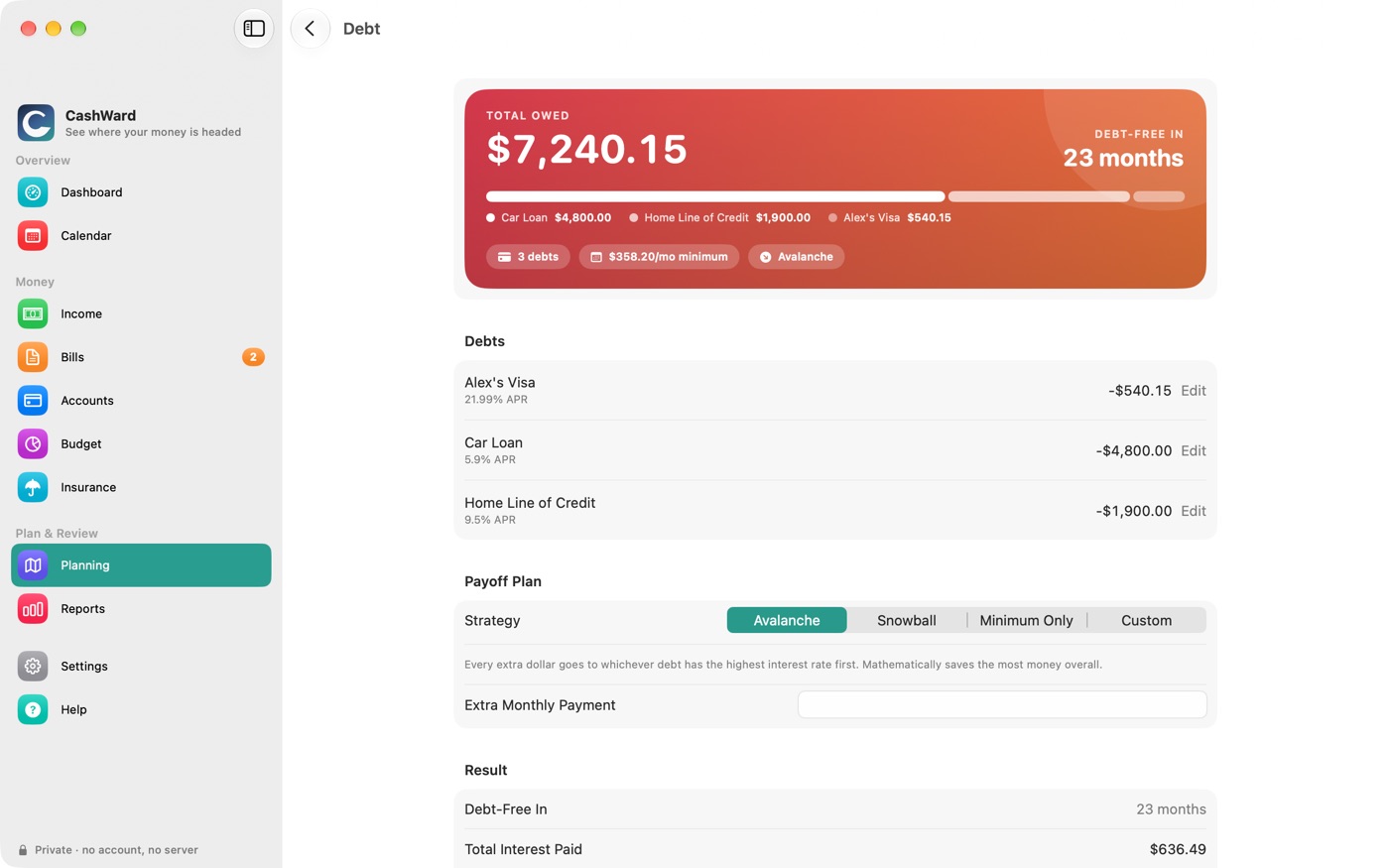
Add each credit card, line of credit or loan as an account (see Section 6.1, Adding an account) with the balance you owe.
Open Planning › Debt. Each debt shows Not set up until you choose Edit and enter its terms: the APR (%), a Credit Limit for cards, the Minimum Payment (a percentage of the balance with a floor, or a fixed monthly payment) and whether it's on Autopay.
Under Payoff Plan pick a strategy and, if you like, enter an Extra Monthly Payment.
| Strategy | How the extra money is used |
|---|---|
| Avalanche | Highest interest rate first. Usually saves the most interest overall. |
| Snowball | Smallest balance first. Clears individual debts fastest, and is often easier to stick with. |
| Minimum Only | Only the required minimums — the baseline everything else is compared against. |
| Custom | You choose the order: drag the debts under Priority Order. |
The Result shows how many months until you're debt-free and the total interest, with a chart of each balance falling to zero. Compare Strategies puts the three built-in strategies side by side.
- Interest is estimated as balance × APR ÷ 12 — a simplification of how real issuers charge it.
- If a minimum doesn't even cover its own interest, CashWard tells you that debt never pays off at this payment.
- Car leases aren't included; a lease isn't a payoff problem.
- In the Chapter 5, The Financial Horizon, each debt's minimum payment is placed on the 1st of the month.
12.3Scenarios
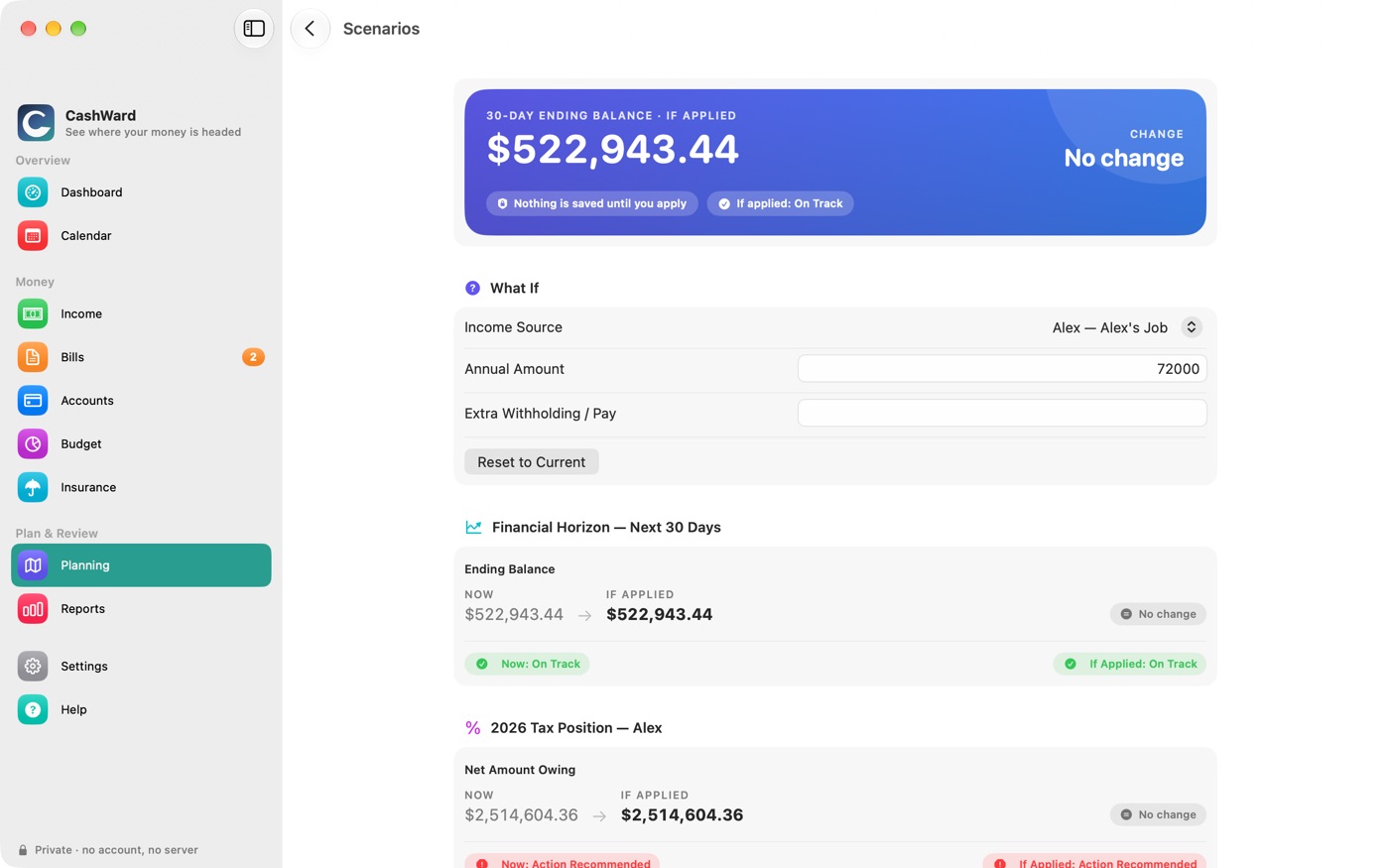
Scenarios lets you ask "what if my pay changed?" without touching your real numbers.
Choose an income source (salary, hourly, or hourly contract) and change its figures — the annual amount for a salary; the rate and hours for hourly work; and any Extra Withholding / Pay.
Watch the two comparisons update: the 30-day Financial Horizon ending balance and the year's Tax Position, each as Now → If Applied with a chip showing the change.
If you like the result, choose Apply This Change. A salary change starts a new compensation period from today, exactly as if you'd added it in Income; hourly and contract changes update in place. Reset to Current puts the fields back.
Scenarios only ever works on a temporary copy. Leave the screen and nothing has changed.
13Reports
One screen that pulls the whole picture together.
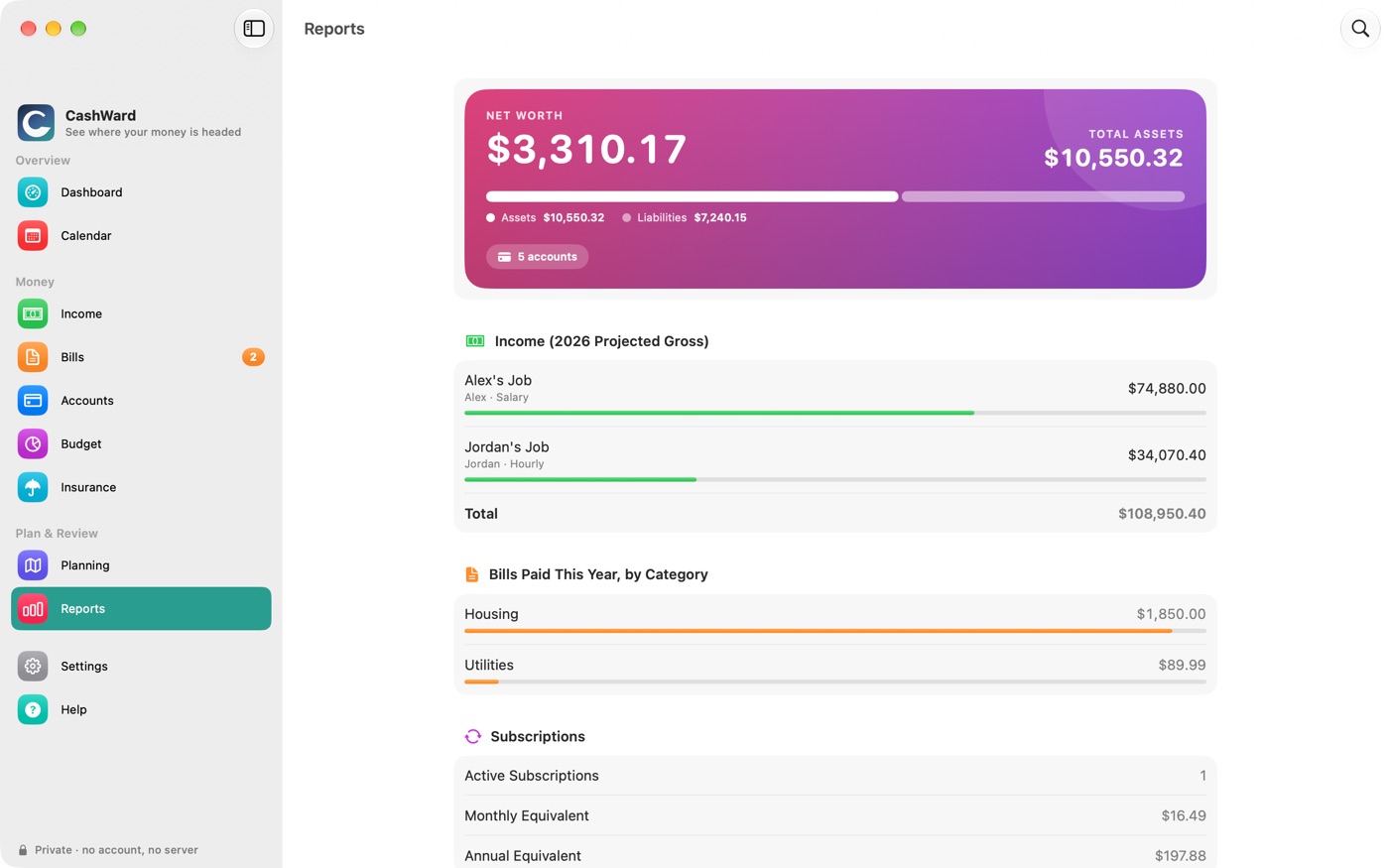
Reports doesn't calculate anything new — it gathers figures from the rest of CashWard so you can read them in one place:
- Net Worth — total assets, total liabilities, and the difference.
- Income — this year's projected gross by source, with a bar showing each source's share.
- Bills Paid This Year, by Category — where your paid bills went.
- Subscriptions — how many, and the monthly and annual equivalent.
- Debt — total balance and total minimum payments, with a link to the debt plan.
- Budget vs. Actual — total budgeted against total spent, with a link to Chapter 9, Budget.
- Tax Position — the combined net amount owing or refund for the household.
- Projected Balance (90 Days) — where the forecast ends, with a link to the Chapter 5, The Financial Horizon.
13.1Searching transactions
Choose the magnifying glass (Search Transactions) at the top of Reports to search everything you've entered or imported. Type in Search Payee, and narrow it with filters: Person, Account, Category, a Date Range and a Min and Max Amount. The count of matches is shown above the list.
14Attached Documents
Keep the bill, the policy or the quote one tap away from the thing it belongs to.
You can attach a copy of a document — a statement, a policy, a quote, a photo of one — to a bill, an insurance policy or an insurance quote. It's stored inside CashWard and opens in a quick preview.
14.1Attaching a document
Open the bill, policy or quote and find its Documents section.
Choose Add File… to pick a file (a PDF, for example), or Add Photo… to pick a photo. Each file can be up to 25 MB.
14.2Viewing and updating
- View — tap a document (or its eye icon) for a full-size preview.
- Replace with a Newer Copy… — swap in this month's statement and keep the same entry. On iPhone and iPad, swipe the row and choose Replace; on a Mac, right-click it.
- Rename… — press and hold the document (iPhone and iPad) or right-click it (Mac). It changes what it's called in CashWard; the file itself is untouched.
- Delete — swipe or right-click. Deleting a bill, an insurance policy or a quote also deletes its documents.
14.3What happens to them
Attached copies are kept inside CashWard, which has no server to send them to, and CashWard never reads or analyses what's in them — it only keeps the copy and shows it back to you. If you use iCloud sync (Chapter 16, iCloud Sync), they sync through your own iCloud with the rest of your data. A bill or policy can contain account numbers, licence details or an address, so attach only what you're comfortable keeping on your devices.
Adding a photo uses Apple's own photo picker, which gives CashWard only the specific photo you choose — never your photo library.
Attached documents are included when you back up, so treat a backup file as carefully as the documents themselves. Set a password when you create it if the file will be kept anywhere shared. See Chapter 15, Backup and Restore.
15Backup and Restore
One file holds everything in CashWard. Keep it somewhere you trust — and use it to move to a new device.
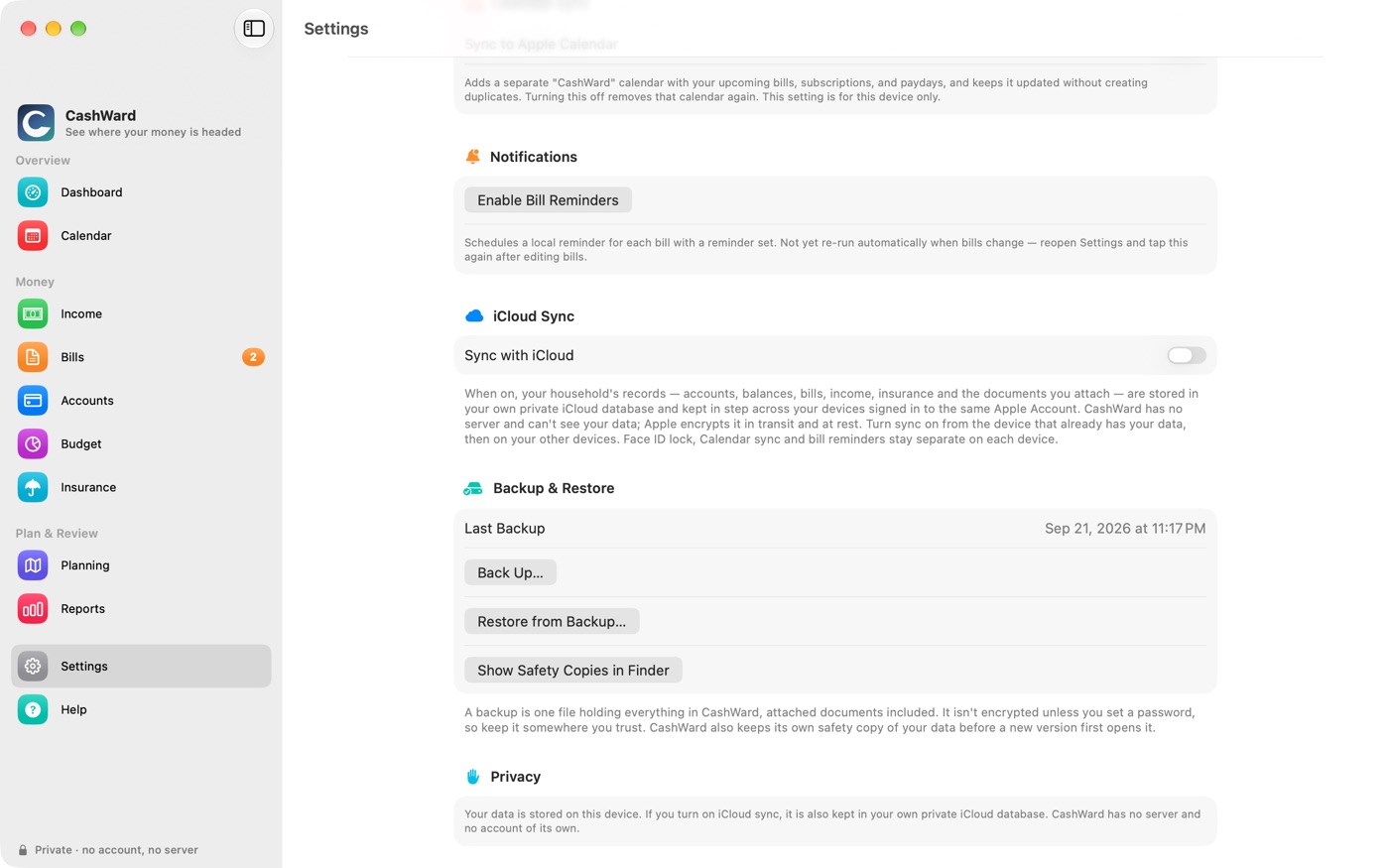
Find it under Settings › Backup & Restore. You'll see when you last backed up; if you never have, or it's been more than a month, a badge nudges you.
15.1Making a backup
Choose Back Up….
Decide whether to Protect with a Password. If you do, enter one of at least eight characters and confirm it.
Choose Create Backup…, then choose where to save the file — a drive, a folder in iCloud Drive, or anywhere else your device offers.
The file is a single .cashwardbackup containing your accounts, income, bills, insurance and attached documents. CashWard checks its own work as it goes, so a damaged file is detected rather than silently accepted.
A backup is not encrypted unless you set a password. Without one, anyone who gets the file can read everything in it — fine for a drive you trust, but set a password for anything in a shared or cloud folder. With a password, the contents are protected with AES-256 encryption. A forgotten password can't be recovered — not by you, and not by CashWard, which never sees it. Write it down somewhere safe.
15.2Restoring
Choose Restore from Backup… and then Choose Backup…. Enter the password if the backup has one.
CashWard checks the file and shows what's in it — when it was made, which version of CashWard made it, its size, and how many accounts, bills, income sources, insurance policies and documents it holds — before anything changes.
Choose Replace My Data. Restoring replaces everything currently in CashWard with what's in the backup.
Quit and reopen CashWard to finish (on a Mac, Quit CashWard does it; on iPhone and iPad, close CashWard from the app switcher and open it again). If you choose Later, the restore is applied the next time CashWard starts.
Before it replaces anything, CashWard saves your current data to its own Backups folder. If the restored data can't be opened, it puts your previous data back automatically and tells you so. If you leave the restore screen before the last step, nothing is left waiting to change your data later.
15.3Safety copies
Separately from backups you make, CashWard keeps automatic safety copies in a Backups folder inside its own data folder: one before a new version of the app first opens your data, and one before a restore replaces anything (only the few most recent are kept). They're there so an update or restore that goes wrong can be undone. On a Mac, Settings › Backup & Restore › Show Safety Copies in Finder opens that folder.
Safety copies live on the same device as your data and aren't password-protected, so they're a seatbelt, not a substitute for your own backups.
15.4Moving to a new device, or between devices
If you don't use iCloud sync (see Chapter 16, iCloud Sync), a backup is how you move your data:
On the first device, make a backup (with a password if it will travel through email, cloud storage or a shared drive).
Get the file to the other device — AirDrop, iCloud Drive, or a USB drive.
On the other device, restore it as above.
After you restore, each device has its own data; changes on one don't appear on the other unless you use iCloud sync. And restoring replaces whatever was on the device you restore to.
16iCloud Sync
Keep your household's records in step across your iPhone, iPad and Mac, through your own iCloud, with no CashWard server in between.
Sync is optional and stays off until you turn it on under Settings › iCloud Sync. Everything in CashWard works without it, and you can turn it off again.
Sync is new. Make a backup (see Chapter 15, Backup and Restore) before you first turn it on, and keep making them: a backup is your own copy, independent of iCloud.
16.1What it does
When sync is on, your household's records are stored in your private iCloud database and kept in step across the devices signed in to the same Apple Account. Change a bill on your Mac and it shows up on your iPhone. Everything still works offline; changes travel when the device is back online.
What syncs: people, accounts and balances, transactions, income and payroll setup, bills and their upcoming and paid occurrences, subscriptions, budgets, debts, insurance policies and quotes, and the documents you've attached.
What stays on each device: Face ID and Touch ID lock, Calendar sync, bill reminders, the automatic safety copies, and the backup files you make. Turning on Calendar sync on your Mac does not turn it on for your iPhone, and reminders are scheduled by each device for itself, so use Enable Bill Reminders on every device you want reminders on.
16.2Turning it on
On the device that already has your data, open Settings › iCloud Sync and turn on Sync with iCloud.
Quit CashWard completely and open it again. Sync starts when the app opens, so a change to this switch takes effect on the next launch. On a Mac, the Quit CashWard to Apply button does the quitting for you.
Wait for the status to read Up to date. The first upload can take a while if you have attached many documents.
On each of your other devices, sign in to the same Apple Account, install CashWard, turn on Sync with iCloud and reopen it. CashWard shows Looking for your data in iCloud… for a moment, then your household appears and the first-launch setup is skipped.
If two devices each already hold their own separate data when you turn sync on, you'll end up with two households side by side (Settings lists them). CashWard removes an empty placeholder household automatically, but it never deletes one that has your information in it.
16.3If two devices change the same thing
Each change is saved to iCloud as it happens, and when the same item was changed on two devices the most recent change wins. Things added on both devices are kept. Some records are made by each device for itself, such as a bill's upcoming due dates; if two devices make the same one, CashWard keeps a single copy, always the one you've marked paid or skipped, so no payment you recorded is lost.
16.4Backups and restore
Backups keep working. Restore from Backup… is unavailable while sync is on, because iCloud would bring back the newer data straight after a restore. To restore, turn sync off, quit and reopen CashWard, restore, and then think about whether to turn sync on again.
16.5When something isn't right
- Not signed in to iCloud
- Sign in to iCloud in your device's own Settings. Your data stays on the device meanwhile and syncs once you're signed in.
- Sync problem: storage full
- Your iCloud storage is full, so changes can't be saved to iCloud. Free up space or upgrade your iCloud plan. Nothing is lost on the device.
- Sync didn't start
- CashWard opened with the data on this device instead, and says why. Nothing was lost. Check your connection and iCloud sign-in and reopen the app.
- My data hasn't arrived on the other device
- Check that both devices use the same Apple Account, that iCloud is on for CashWard on the other one, and that both show Up to date. Sync isn't instant; give it a minute on a good connection.
16.6Turning it off
Turn off Sync with iCloud and reopen CashWard. The data on this device stays exactly as it is. The copy in your iCloud stays too until you remove it yourself in your iCloud storage settings, so other devices that still have sync on keep syncing with each other.
For what is stored and who can see it, see Section 18.4, iCloud.
17Settings and Security
Your household, your safety balance, and how CashWard protects what's inside.
17.1Household and people
- Household — the name of your household.
- People — everyone whose income and accounts you track. Add Person takes a Name and a Province / Territory; the province drives payroll and tax estimates. Swipe (or right-click) a person to delete them.
- Households — appears only if you have more than one household. Swipe or right-click a household to remove it and everything in it.
17.2Preferences
Preferred Currency is shown as CAD. Safety Balance is the lowest balance you're comfortable with (it starts at $500): the Financial Horizon marks a projected day Watch when your balance would fall below it, and Action Recommended if it would go negative. See Section 5.4, The safety balance.
17.3App lock
Switch on Require Face ID / Touch ID to lock CashWard on launch and whenever it returns from the background. It uses your device's own Face ID, Touch ID, or passcode (login password on a Mac) — CashWard never sees or stores it. If Face ID or Touch ID isn't working, your device passcode always works as the fallback. The switch is unavailable until your device has a passcode or login password.
App lock is a setting for this device only: turning it on here doesn't change your other devices.
17.4Calendar sync
See Section 11.2, Sending events to Apple Calendar. Like app lock, it is a setting for this device only.
17.5Notifications
Enable Bill Reminders schedules a local reminder for each bill that has one set. See Section 8.4, Reminders.
17.6iCloud Sync
Turn on Sync with iCloud to keep your household in step across your devices through your own iCloud. A status line shows when it last received and sent changes. See Chapter 16, iCloud Sync.
17.7Backup & Restore
18Your Privacy and Your Data
Your financial data is yours: it lives on your devices, and in your own private iCloud only if you turn sync on. Here is exactly what that means.
18.1What CashWard stores, and where
Everything you enter — household and person names, provinces, accounts and balances, transactions, income, bills, subscriptions, budgets, debts, insurance policies and quotes, and any documents you attach — lives in a database on your own device. CashWard has no account, no sign-in and no server, and nothing you enter is sent anywhere by CashWard. (If you turn on iCloud sync, your device and Apple's iCloud exchange it, as described below.) It contains no analytics, advertising or tracking of any kind.
CashWard never asks for and never stores your Social Insurance Number, your banking passwords or PINs, or full credit or debit card numbers, and it never connects to your bank.
18.2Permissions
Everything below is optional, and CashWard works fully offline without any of it:
| Permission | Used for |
|---|---|
| Face ID / Touch ID / passcode | The app lock. The operating system does the check and only tells CashWard yes or no. |
| Calendar | The optional CashWard calendar of bills and paydays. |
| Notifications | Bill reminders, scheduled on your device only. |
| Photos | Only when you attach a photo, through Apple's own picker, which hands CashWard just the photo you choose. |
18.3Files you create
Backups you save and documents you attach can contain everything CashWard holds. A backup is not encrypted unless you set a password. Handle both with the same care as the paperwork they came from (see Chapter 15, Backup and Restore). CashWard's own safety copies stay on the device.
18.4iCloud
iCloud sync is optional and off by default. If you turn it on (Chapter 16, iCloud Sync), your household's records are stored in your own private iCloud database, the same kind of private storage other apps use for your notes or reminders. Here is what that does and doesn't mean:
- CashWard has no server and no account of its own. The data goes between your devices and Apple's iCloud; CashWard's developer cannot see it or reach it.
- Apple encrypts data stored in iCloud in transit and at rest. It is not end-to-end encrypted by CashWard, so it is protected by your Apple Account: use a strong password, and turn on two-factor authentication.
- What syncs is the household's records and the documents you attach. Face ID lock, Calendar sync, bill reminders, safety copies and backup files stay on each device.
- Turning sync off stops it on that device. Copies already in iCloud stay there until you remove them in your iCloud storage settings.
- Sync is only between devices signed in to the same Apple Account. Sharing one household between two different Apple Accounts is not supported.
18.5Deleting your data
- Inside CashWard — deleting a person, a household, an insurance policy or quote, or an attached document removes it. Deleting an account, bill, subscription, budget or income source hides it from every screen (CashWard keeps a record so past figures, like a paid bill's history, stay consistent); a bill's attached documents are removed along with it.
- iPhone and iPad — delete the CashWard app. That removes its database, attached documents and safety copies from the device.
- Mac — moving the app to the Trash isn't enough, because your data lives in a folder in your Library rather than inside the app. Quit CashWard, then delete CashWard's data folder. Settings › Backup & Restore › Show Safety Copies in Finder opens its Backups folder; the folder that contains it is the data folder.
- Copies you made — backup files you saved, and any Time Machine or iCloud device backups, are yours to delete; CashWard can't see them.
There is no copy of your data anywhere else for CashWard's developer to delete, because there never was one.
19Troubleshooting and FAQ
Quick answers to the things people ask most.
19.1The forecast doesn't look right
- My Dashboard or Financial Horizon is empty or zero.
- The forecast starts from an account balance. Add an account with today's balance (Section 6.1, Adding an account), then add your pay and bills.
- The balance looks too high.
- Check the Chronology. Common causes: a bill that isn't entered, a bill marked paid or skipped for a date that hasn't actually gone out, or everyday spending that isn't in the forecast (only bills, subscriptions, debt minimums and pay are). Also note that hourly and one-off income aren't included.
- The balance looks too low.
- Check that each bill's amount, first due date and repeat schedule are right, that no bill is entered twice, and that your account balance is current.
- My pay doesn't match the Financial Horizon.
- The forecast uses an estimated take-home amount from CRA payroll formulas, assuming steady pay. It won't match your pay stub to the cent; compare gross pay and deductions in Section 7.3, Payroll estimates.
- Why does it say Quebec isn't supported?
- Quebec administers payroll separately from the CRA, and CashWard never estimates rules it hasn't verified. Other provinces and territories are supported.
19.2Using the app
- My budget shows nothing spent.
- Budgets count paid bills in each category. Give your bills a category and mark them paid (Section 8.3, Marking a bill paid).
- Bill reminders aren't arriving.
- Turn on Settings › Notifications › Enable Bill Reminders and allow notifications when asked. Reminders aren't re-scheduled automatically when you change bills, so tap it again after editing.
- Events are missing from Apple Calendar.
- Check that Settings › Sync to Apple Calendar is on and that CashWard has calendar access in your device's Settings (System Settings on a Mac).
- I deleted something by mistake.
- There's no Undo. Add it again, or restore a recent backup (Chapter 15, Backup and Restore).
- I turned on Face ID and now I'm locked out.
- CashWard uses your device's own authentication. If Face ID or Touch ID isn't working, your device passcode (or Mac login password) always works.
19.3Backups and moving devices
- I forgot my backup password.
- It can't be recovered, by you or by CashWard. If you still have the device the data came from, make a new backup.
- I restored a backup and nothing changed.
- A restore finishes when CashWard restarts. Quit it and reopen it (on iPhone and iPad, close it from the app switcher first).
- Can I sync my Mac, iPhone and iPad?
- Yes, if you turn it on: iCloud sync is optional (Chapter 16, iCloud Sync). You can also move your data once with a backup file (Section 15.4, Moving to a new device, or between devices).
- Does CashWard connect to my bank?
- No. You enter balances yourself, or import a CSV, OFX or QFX file you've downloaded from your bank's own site.
Still stuck? See Chapter 21, Getting Help.
20Glossary
- APR
- Annual percentage rate — the yearly interest rate on a debt.
- Avalanche / Snowball
- Two ways to pay down debt: highest interest rate first (avalanche) or smallest balance first (snowball).
- Compensation period
- A stretch of time during which a salary has the same annual amount. A raise starts a new one.
- CPP / CPP2 / EI
- Canada Pension Plan (and its enhanced second tier) and Employment Insurance contributions taken from pay.
- Financial Horizon
- CashWard's day-by-day forecast of your balance.
- Household
- The group of people whose money you plan together.
- Partial load
- A contract that pays through holidays instead of deducting them.
- Occurrence
- One due date of a repeating bill.
- Safety balance
- The lowest balance you're comfortable with. Dipping below it makes the status Watch.
- Safety copy
- An automatic copy of your data CashWard keeps before an update or a restore.
- Share
- One vehicle's or property's part of a policy's or quote's total premium.
- Status
- On Track, Watch or Action Recommended — how the forecast looks against your safety balance.
- Ward
- The ring on the Dashboard: CashWard's status signal, drawn from the same open "C" as the app icon.
21Getting Help
A built-in manual, and a real person if you're still stuck.
21.1The manual inside CashWard
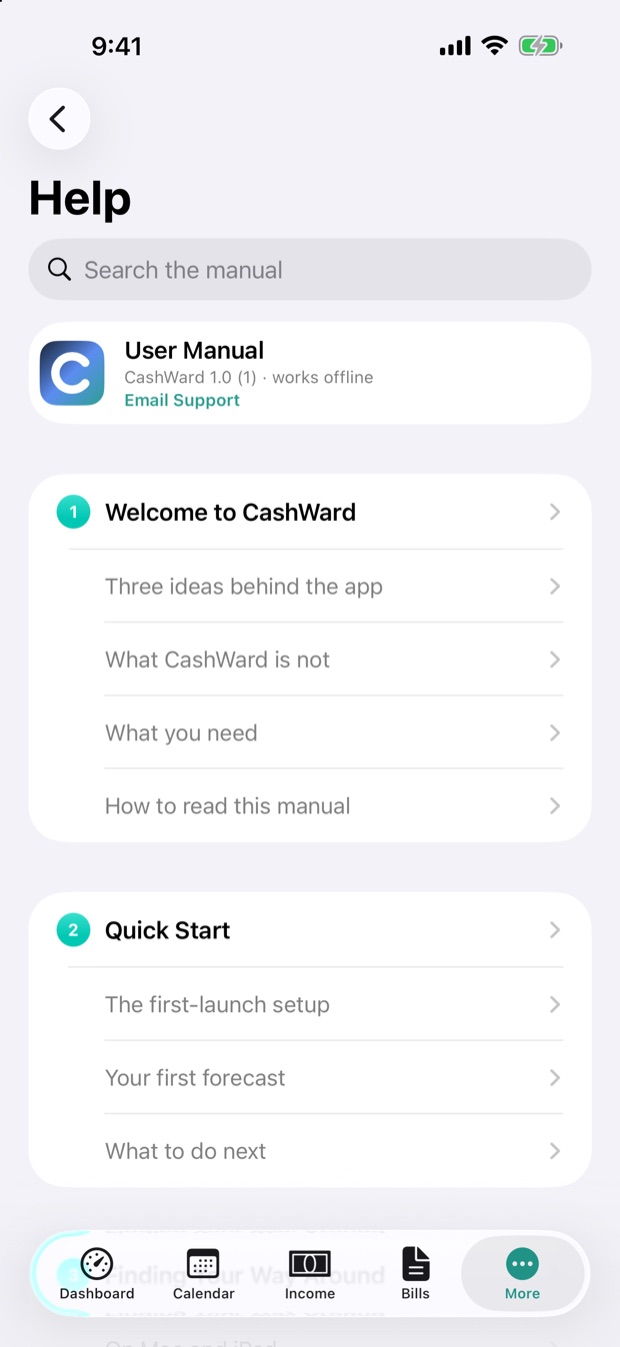
This manual is built into the app and works offline. Open Help from the sidebar (or under More on an iPhone), or choose Help › CashWard Help on a Mac. On a Mac and iPad the contents list sits beside the manual; on an iPhone the contents list comes first and each chapter or section opens the manual right there. Type in Search the manual to filter the contents by title. Links inside the manual jump between chapters.
21.2Contacting support
A real person answers.
Email shadowteam@shadowaccess.ca and include:
- your device (iPhone, iPad or Mac) and its system version;
- the CashWard version (shown at the bottom of the Help screen in the app);
- what you were doing, and what you expected to happen.
Never email account passwords, banking credentials or full card numbers — CashWard never needs them, and support will never ask for them. Please don't attach a CashWard backup file or your documents either; they can contain everything you've entered.
CashWard is planned to grow: more country and language support is next on the list. This manual is updated with each release.